Every device, the same live recordColleagues work in it together, by name.
Co-editing, presence, annotation, and handoff
Live co-editing
Notes, captions, and record details can be written by colleagues at the same time, each caret shown where they are writing.
Presence by name
Each colleague's mark, with their initials, sits on the cards and rows they have open in the record.
Session handoff
The session pill names what is open on another device and opens it here, while the other session keeps running.
Colleagues in the same record
Multi-device sync in detail
Presence by Name
Colleagues working in the same patient record are shown by name, on the cards and rows they have open.
Named in the session pill
Illustrative demo with synthetic data. Learn more
- A colored mark on each card or row a colleague has open
- Hovering the mark shows the colleague's full name
- The Sync Status panel lists the sessions holding the record
Live Co-Editing
Colleagues write in the same record at the same time, and every change appears where it was made.
Writing notes together
Illustrative demo with synthetic data. Learn more
- Colleagues can write in the same entry at once, each in their own field
- The field a colleague is editing is marked while they are in it
- Inside a note, a colleague's caret shows where they are writing
- Appointment dates, session details, and the other record fields update in place
Annotating Together
Colleagues mark up the same photograph at once, each seeing what the others are drawing.
Annotating together
Illustrative demo with synthetic data. Learn more
- A colleague's pointer appears on the image as they work
- The stroke, shape, label, or pin they are drawing previews live
- Moving or resizing a saved mark previews on every open screen
- Colleagues can work on different marks at once, each saved to every screen
- On a comparison, one person arranges the layout at a time, shown by name
Session Handoff
The session pill opens a session that is running on another device, without retracing the path to it.
Continue on another device
Illustrative demo with synthetic data. Learn more
- The session pill names what is open elsewhere and by whom
- The pill lists live sessions; a row opens that destination here
- The other session keeps running on the device that had it
- Turning off Sessions of Other Team Members limits the pill to the account's own devices
Live Pointer
A transient pointer for co-review, drawn live on the image while you talk a patient through it.
Live Pointer, shared
Illustrative demo with synthetic data. Learn more
- Draw directly on images and comparisons to highlight areas of interest
- A colleague's strokes are drawn on every screen with that image open
- Pointer marks fade within seconds, leaving the record as it was
- Designed for patient-facing presentations on shared screens and projectors
- In the image viewer, split and overlay comparisons, and other canvases
- Pairs with persistent annotations when markup should outlast the session
Autosave
Entry, image, and full body session work is saved as it is made, with the save state shown at every step.
Saving, then Saved
Illustrative demo with synthetic data. Learn more
- Edits are saved as they happen on every editing surface
- The header shows Saving, then Saved, with the time of the last save
Change Control
The patient record is the deliberate exception to autosave: edits are staged, counted, and reversible field by field before anything is committed.
Field-by-field change control
Illustrative demo with synthetic data. Learn more
- A Changes counter in the header counts how many fields differ from the saved record
- Every modified field carries its own revert control back to the saved value
- Removing an assigned tag is staged with its own undo rather than applied at once
- On the drawing surfaces, undo and redo cover the annotation and canvas work of the session
In the consulting room
Pointing at the image
Live Pointer strokes appear on the consulting-room display and on a colleague's screen, then fade.
Frequently asked questions
No. Sync runs inside the practice installation set up by Dermi Atlas Manager, and devices reach it over the local network, so an internet outage does not interrupt sync between the devices in the building.
Everyone works in it at once, each in their own field. When one detail is saved from two sessions at once, the other session's change is kept and a notice names it; for entry notes, this session offers to keep its version or load the newer one.
Yes, while a record is open: a colored mark with your initials sits on the cards and rows you have open, and your caret shows in a note you are writing. Presence is shown in the moment; the activity log records saved changes by name.
Live Pointer strokes are drawn live for every colleague with the image open, in the pointing person's color, and fade within seconds, leaving the record as it was. Annotations are saved with the photograph and appear wherever it is opened.
Work already saved is kept, and pending edits are saved once the connection returns. The application reconnects on its own and picks up what changed meanwhile; if a save fails, the indicator says so and offers to retry.
Not in the on-premises deployment. Sync runs inside the practice installation, and the changes, presence marks, and pointer strokes it carries travel only between the devices and that installation over the local network.
Any device on the practice network with a web browser, including workstations, tablets, and phones, and Atlas can be installed like an app from the browser. The Dermi Atlas Companion app adds native capture on iPhone and iPad, with its own presence mark.
Try real-time sync in Dermi Atlas
The demo runs in a browser; the free trial runs on the computers your practice already owns.
Resources and further reading
Related pages
Plans, pricing, and free trial
Atlas Cloud Demo
- No time limit
- No credit card
- Nearly every feature, with photos you upload
- Runs in a browser, nothing to install
- A free Dermi Cloud Services account to sign in
- Not for real patient data
- Data cleared at least weekly
Dermi Atlas Professional
- Base plan per deployment
- First 30 days free
- Additional clinician seat$59 USD / month
- Additional assistant seat$12 USD / month
- Every feature, with real patient records
- Runs on computers the practice already owns
- Technical support at no extra charge
Synthetic Data Notice
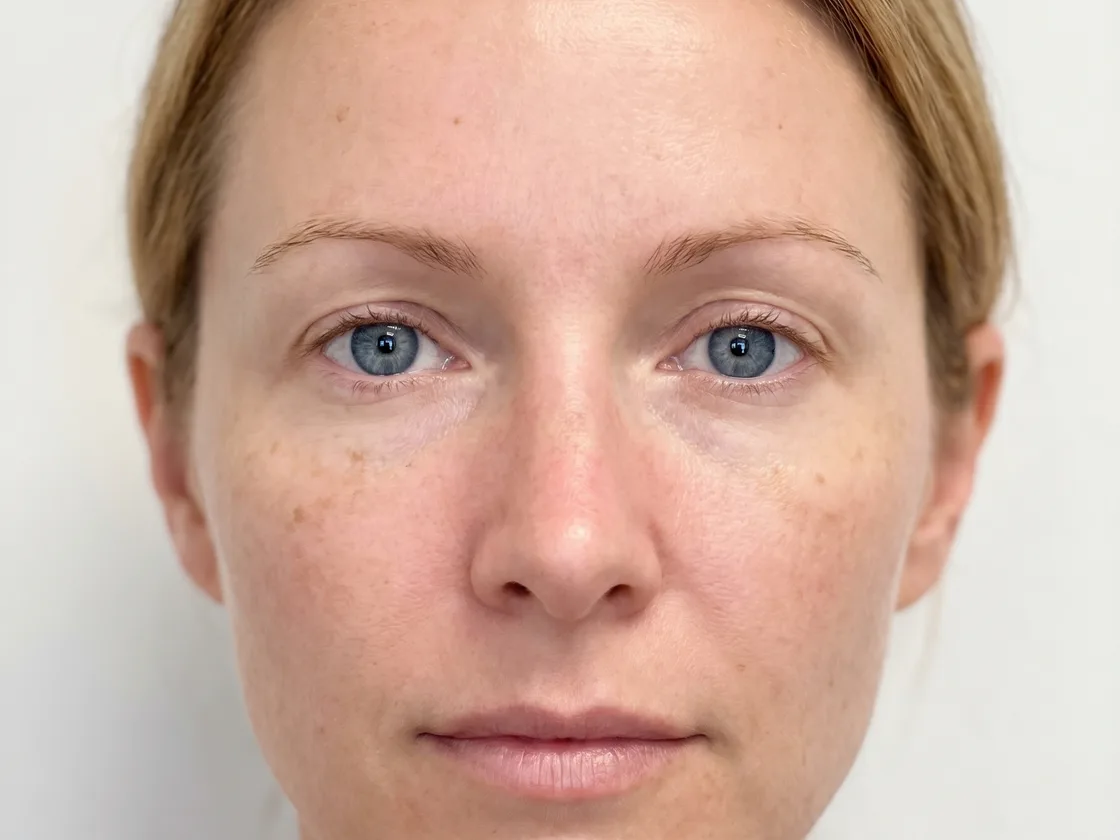
All demonstrations, screenshots, and media on this page use synthetic data only. No real patient information is shown.
The following are synthetic and do not correspond to real patients:
- All human faces and individuals are synthetic and do not represent real people
- All clinical and medical images, including photographs and scans, are synthetic or simulated
- All patient names, dates, identifiers, and other details are fictional
- All clinical notes and documentation are sample content for demonstration only
Media is provided solely to illustrate platform functionality and workflows.