/
Patient Search and Filtering
Find patients on the Dermi Atlas Patient Database page with search, sorting, and date, tag, member, and attribute filters, and read what each patient card shows.
Updated September 29, 20266 min read
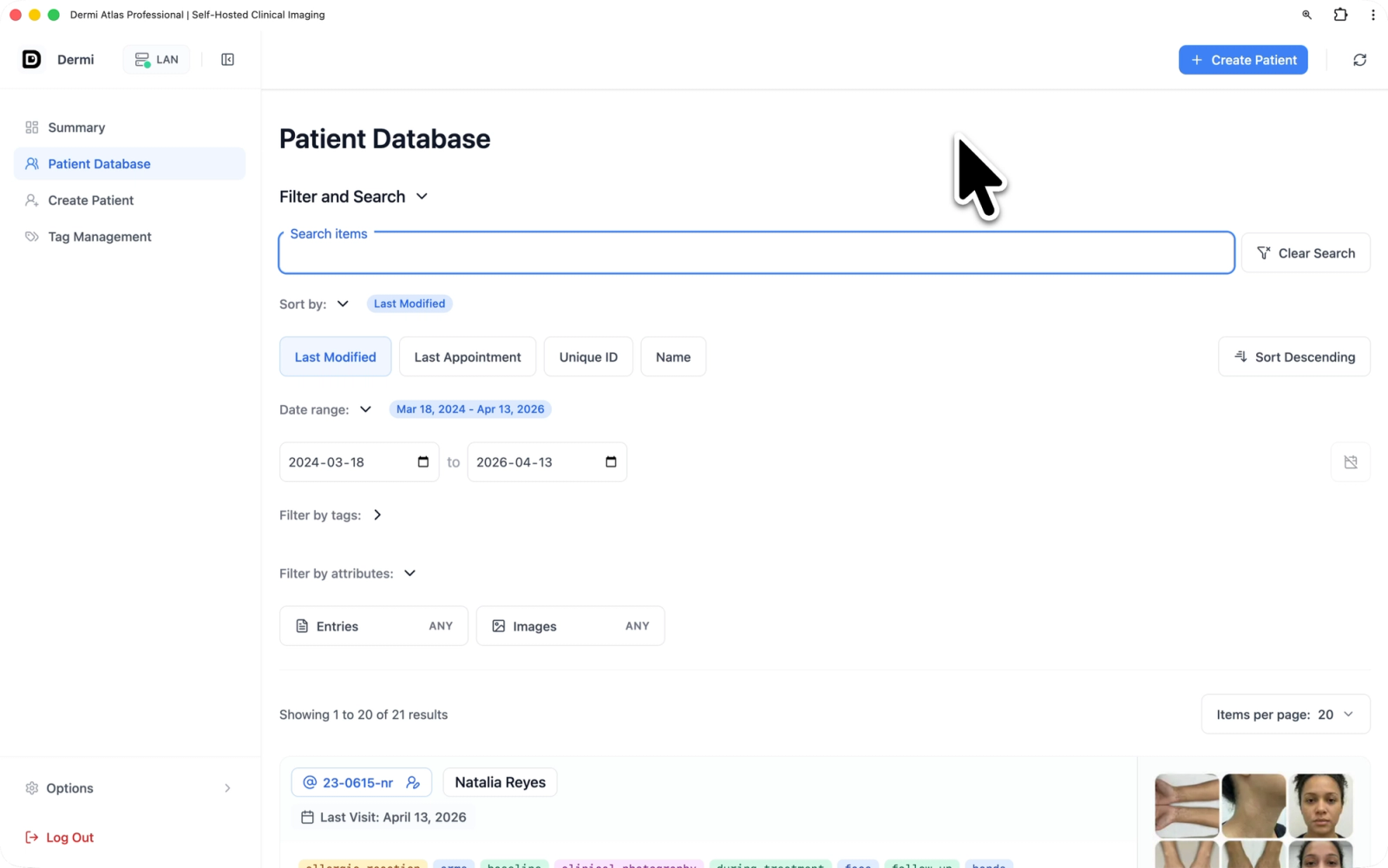
The Patient Database page lists every patient of the practice team as a card. It opens from Patient Database in the sidebar or from the Patient Database quick action on the Summary page. The header carries Create Patient, which requires an active license, and a refresh control; the Filter and Search panel below it holds the search field, the sort options, and the filters.
Illustrative demo with synthetic data. Learn more
Patient Cards
Each card shows:
- Unique ID: a button that opens the patient's details
- Full name, when one is recorded
- Last Visit: the latest appointment date among the patient's entries, or the date the record was created when it has no entries
- Tags: assigned and inherited, in their category colors
- Sessions, Images, and Entries: the counts of full body sessions, images, and entries
- Modified: the time of the most recent change to the record, shown as a time for today, "yesterday", a month and day earlier this year, or a full date for earlier years
- Record ID: the identifier Atlas gives the record, also shown under View Details
- Thumbnails: up to nine recent images, with a "+N" badge when the patient has more
Three buttons along the bottom of the card open the patient's Full Body page (the icon button), Pool, and Entries.
Searching
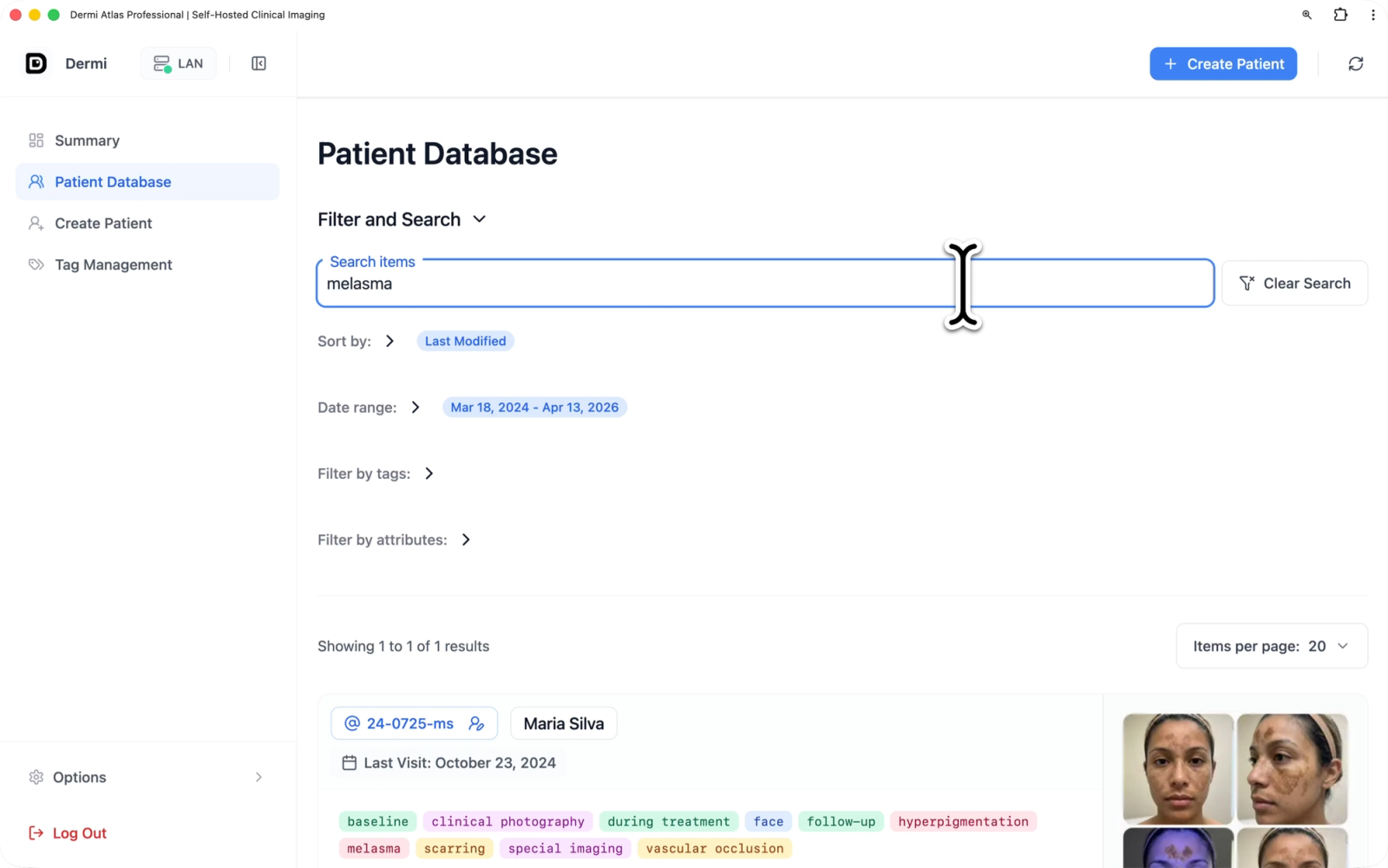
The Search items field at the top of the panel matches the unique ID, the full name, the record ID, and the names of every tag assigned to or inherited by the patient. Case is ignored and part of a word matches, so "pt-00" finds every patient whose unique ID contains that text. The field takes up to 32 characters, and the results update as the text is typed.
Illustrative demo with synthetic data. Learn more
Illustrative demo with synthetic data. Learn more
Creating a Patient from a Search
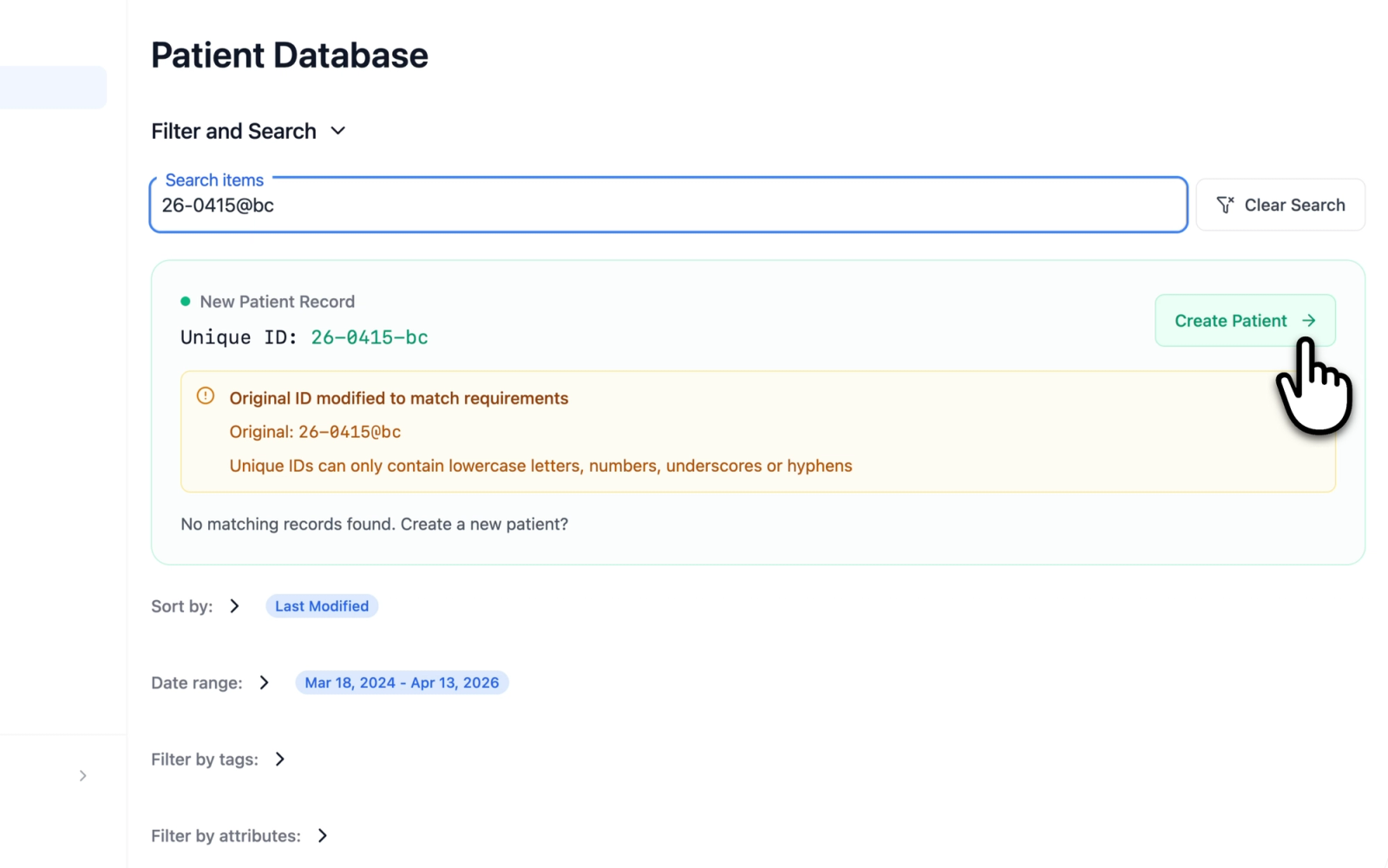
When a search matches no patient, a New Patient Record prompt shows the search text as a unique ID, with the question "No matching records found. Create a new patient?". Create Patient opens the Create Patient page with that ID filled in. Characters that a unique ID cannot hold become hyphens, and the prompt then reads "Original ID modified to match requirements" above the original text. Creating the record is described in Managing Patients.
Illustrative demo with synthetic data. Learn more
Sorting
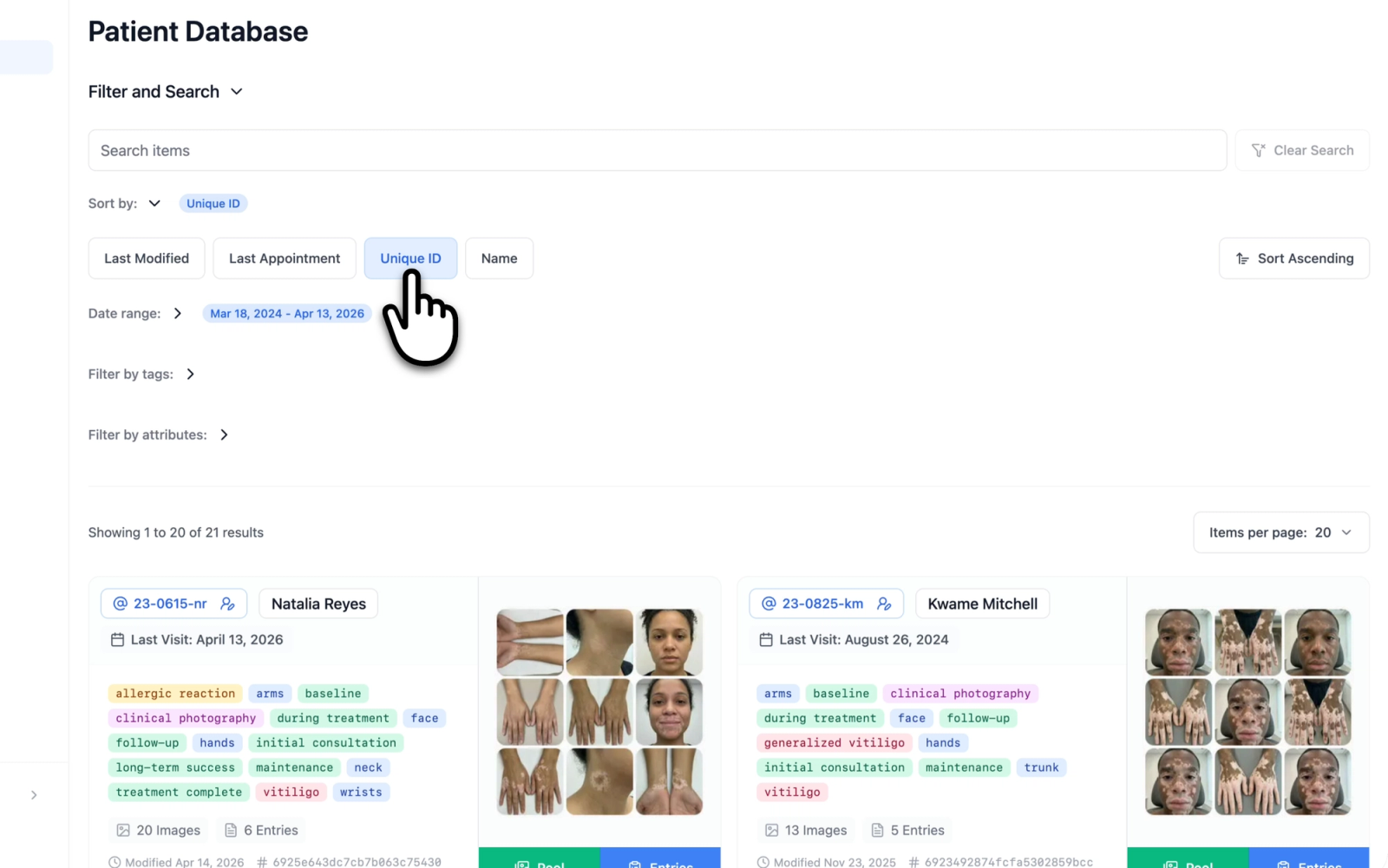
The Sort by: section orders the cards by one of four options, and the direction control switches between ascending and descending:
- Last Modified: the most recent change anywhere in the patient's record, including its details, tags, entries, images, zones, lesions, and full body sessions. This is the default, newest first.
- Last Appointment: the latest appointment date among the patient's entries, or the creation date for a patient with no entries
- Unique ID: alphabetical by unique ID
- Name: alphabetical by full name
The list refreshes on its own when a colleague changes a patient, so under Last Modified the patient a colleague is working on moves to the top while the page is open.
Illustrative demo with synthetic data. Learn more
Illustrative demo with synthetic data. Learn more
Filters
Filters combine with the search and with each other: a patient is listed only when it matches all of them.
Date Range
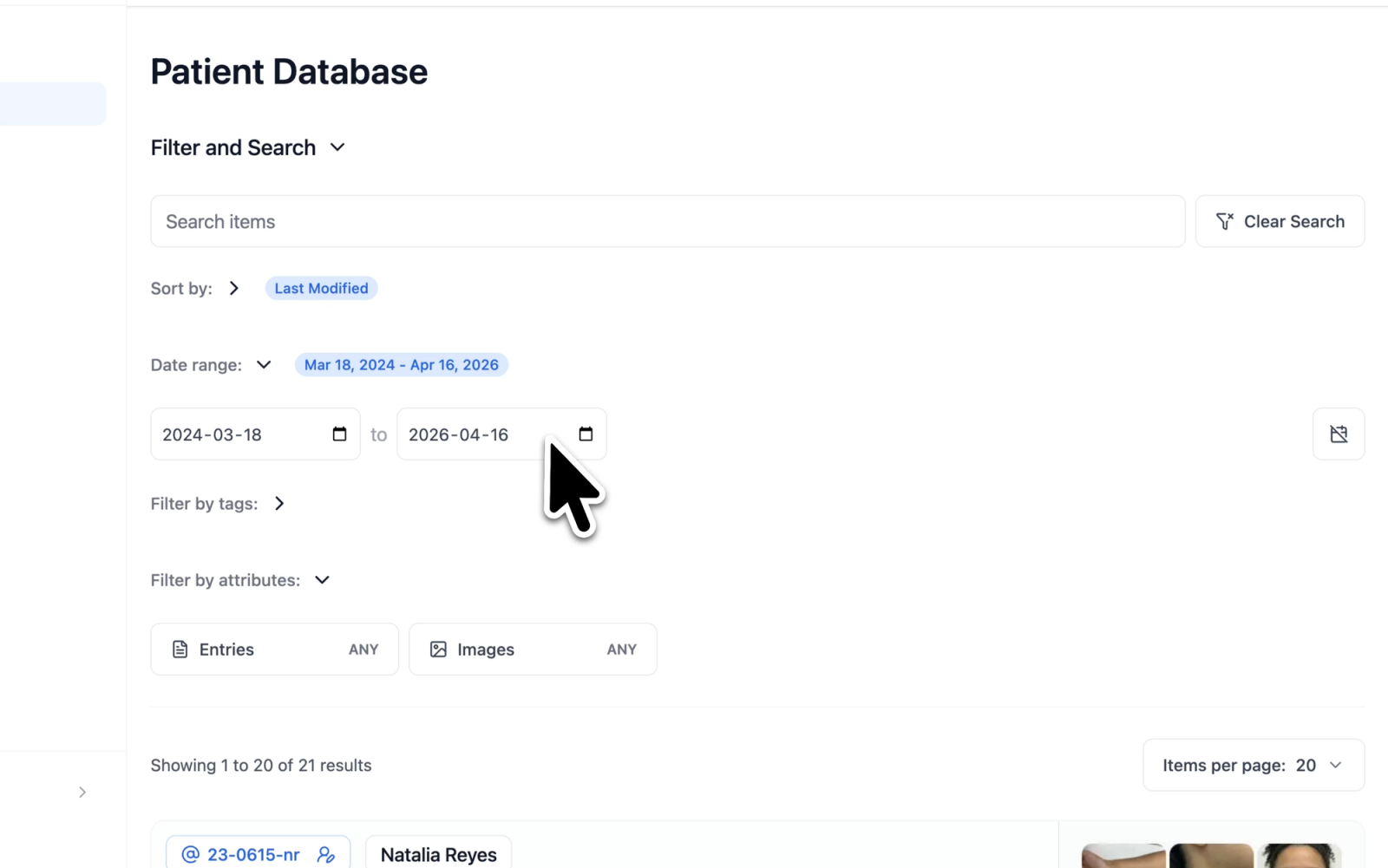
The Date range: section limits the list to patients whose last appointment falls between a start and an end date. It spans every patient by default, the active range is shown beside the section title, and Reset to full date range restores the full span.
Illustrative demo with synthetic data. Learn more
Illustrative demo with synthetic data. Learn more
Tags
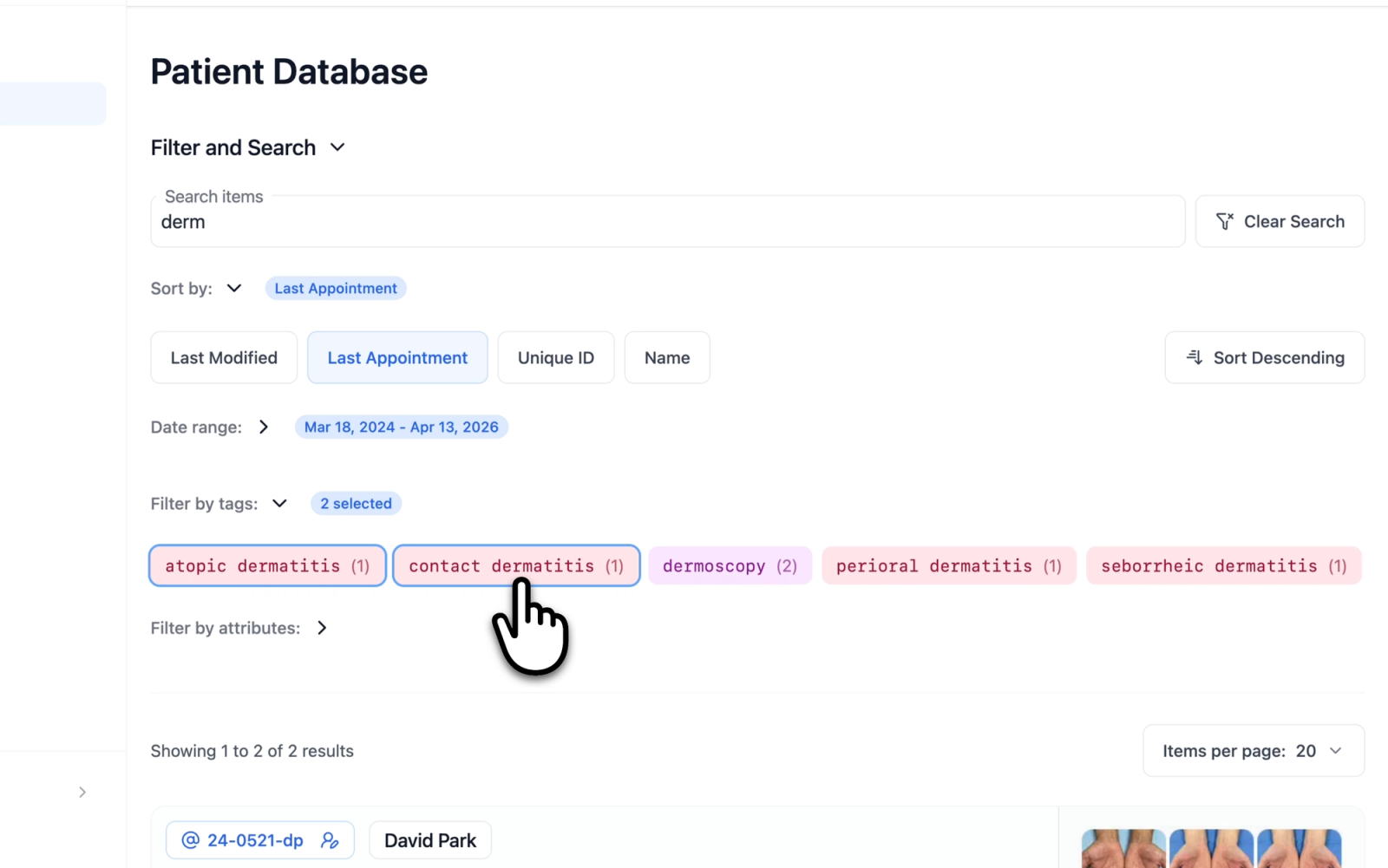
The Filter by tags: section lists every tag carried by at least one patient, in its category color and with the number of patients carrying it. Selecting several tags lists the patients that carry any of them, and the section title shows how many are selected. While a search is active, the section shows only the tags whose names match the search, plus any tag already selected. Tags are created and organized as described in Tag Management.
Illustrative demo with synthetic data. Learn more
Illustrative demo with synthetic data. Learn more
Members
On a team with more than one member, the Filter by members: section lists one chip per member and an Unassigned chip, and selecting chips lists the patients assigned to any of them. Assignment, this filter, and the preference that sets which list the page opens on are described in Assigning Patients and Team Views.
Illustrative demo with synthetic data. Learn more
Attributes
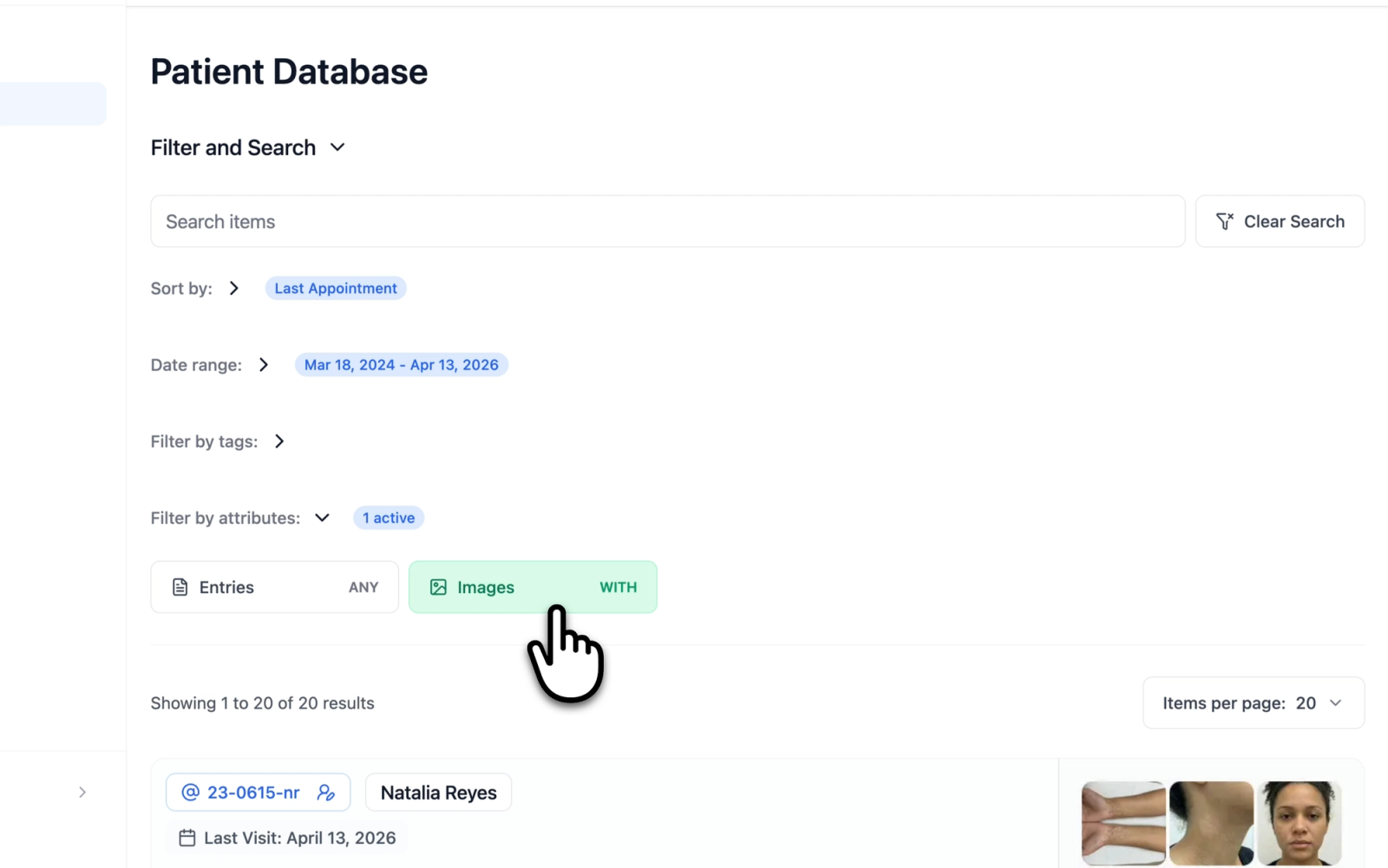
The Filter by attributes: section holds three filters, Entries, Images, and Sessions. Each cycles through three states when selected:
- Any: the attribute is not considered (the default)
- With: only patients that have at least one
- Without: only patients that have none
The section title shows how many attribute filters are active. Entries set to Without, for example, lists the patients created without a first visit on record.
Illustrative demo with synthetic data. Learn more
Illustrative demo with synthetic data. Learn more
Clearing the Search and Filters
The Clear Search button beside the search field is enabled whenever a search or a filter is active. It clears the search text, the selected tags and members, and the attribute filters, and restores the full date range, in one step. On a phone it appears as an icon button. When the search and filters leave no patient to show, the results area reads "No matching results" and offers a Clear Search and Filters button with the same effect.
Results and Pages
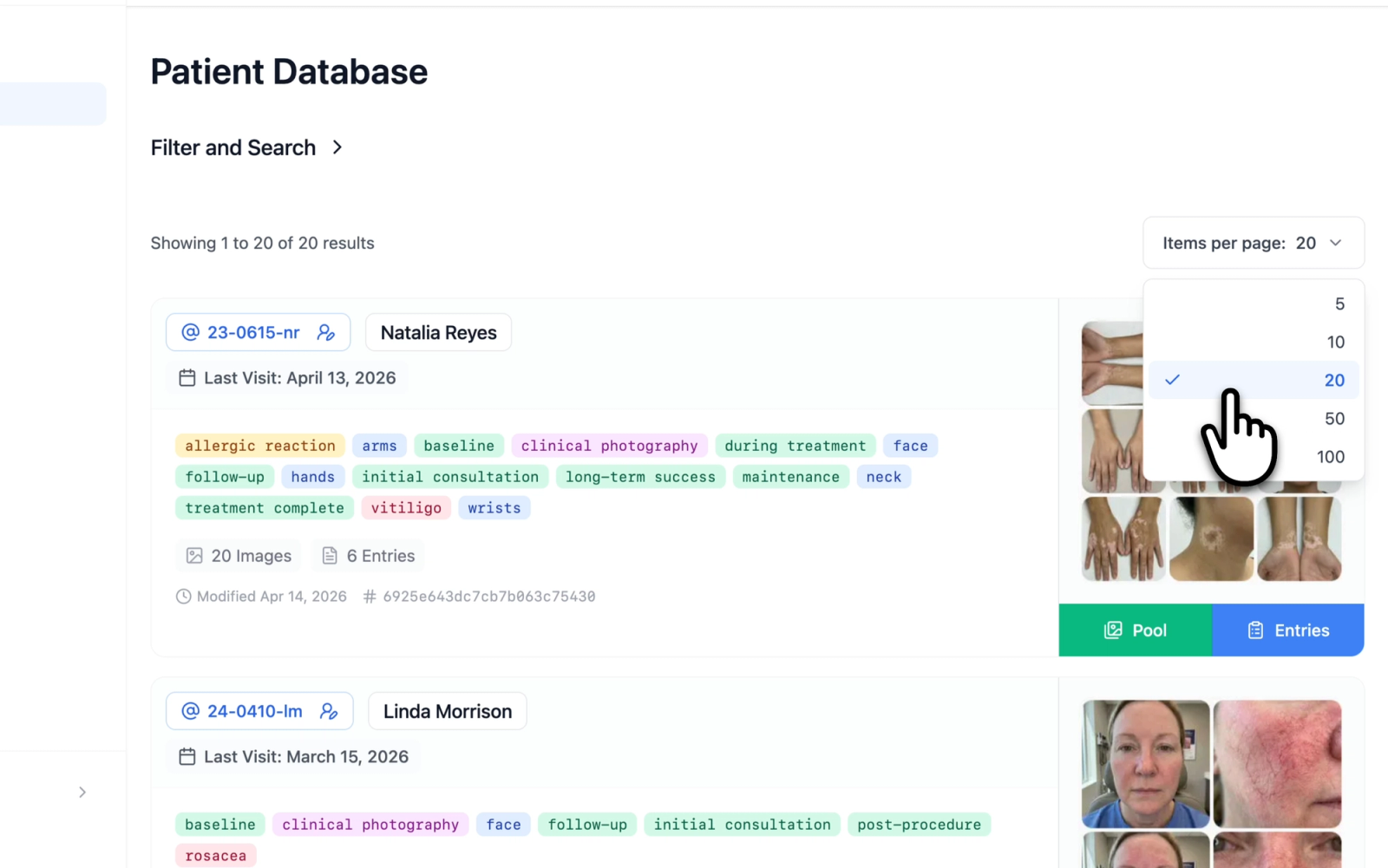
The results line reads, for example, "Showing 1 to 20 of 47 results". Items per page sets 5, 10, 20, 50, or 100 cards per page, 20 by default, and the page controls sit at the bottom of the list. Changing the search, a filter, the sort, or the page size returns the list to its first page; a refresh caused by a colleague's change keeps the current page.
Illustrative demo with synthetic data. Learn more
Page Preferences
Three cards on the Preferences page shape how the Patient Database opens for each account:
- Patient Database Sort: the default sort option, direction, and items per page. With Remember Selection, the default, the page opens on the sort and page size last chosen there; with Re-initialize Defaults, it opens on the values set on the card.
- Database Sections: which sections of the Filter and Search panel open expanded, on the Patient Database and on the entries list alike. By default Filter and Search, Sort by, Filter by tags, and Filter by members open expanded, and Date range and Filter by attributes open collapsed. With Re-initialize Defaults, the default, sections opened or closed on the page return to these settings on the next visit; with Remember Selection, they open as they were left.
- Patient Database: the list the page opens on, on a team with more than one member, described in Assigning Patients and Team Views.
Related Resources
- Managing Patients for creating and editing a patient record
- Assigning Patients and Team Views for assignment and the Members filter
- Tag Management for the tag library and tag assignment
Was this article helpful?
Your feedback helps improve the documentation
Still have questions?
Typical response within 24 hours.
Synthetic Data Notice
All demonstrations, screenshots, and media on this page use synthetic data only. No real patient information is shown.
The following are synthetic and do not correspond to real patients:
- All human faces and individuals are synthetic and do not represent real people
- All clinical and medical images, including photographs and scans, are synthetic or simulated
- All patient names, dates, identifiers, and other details are fictional
- All clinical notes and documentation are sample content for demonstration only
Media is provided solely to illustrate platform functionality and workflows.