/
Generating PDF Reports
Generate PDF reports from patient records in Dermi Atlas, covering a clinical entry, patient details, the Image Pool, full body photography, or the complete record.
Updated September 29, 20265 min read
Dermi Atlas generates PDF reports directly from a patient's record, for a referral, a records transfer, or an internal review. Each report opens as a print-ready preview in a new browser tab and is saved as a PDF file from the browser.
Only Clinician accounts can export PDF reports. An Assistant account that opens a report page sees "Export restricted" in place of the report.
Opening a Report
Reports are started from the More Options menu of a patient's pages, and from the Session Details drawer for a single full body session:
- Patient Details: Export Details, Export Image Pool, Export Full Body, and Export Full Report
- Clinical entry: Export Entry
- Image Pool: Export Image Pool
- Full Body Photography: Export Full Body
- Session Details drawer: Export Session
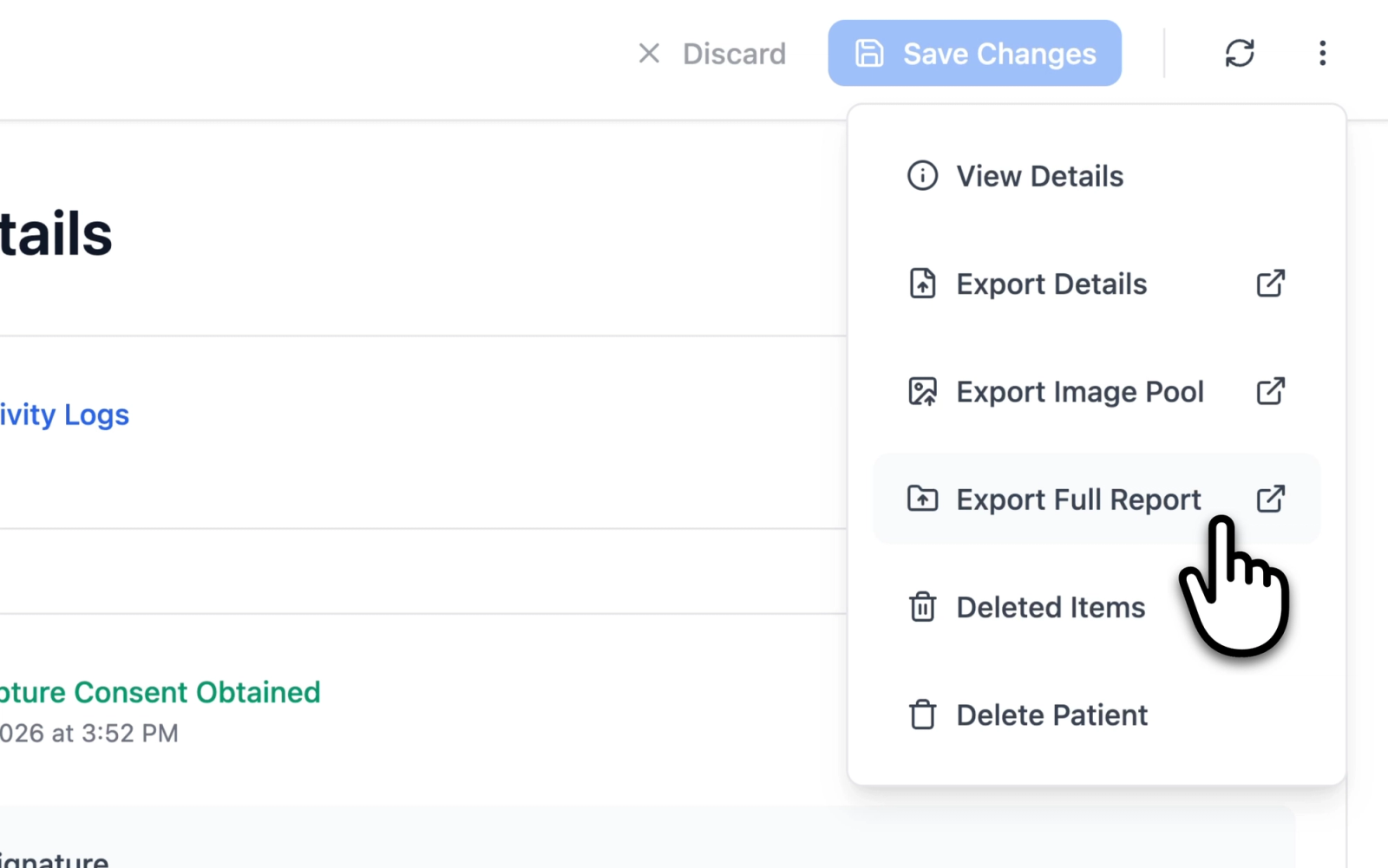
Illustrative demo with synthetic data. Learn more
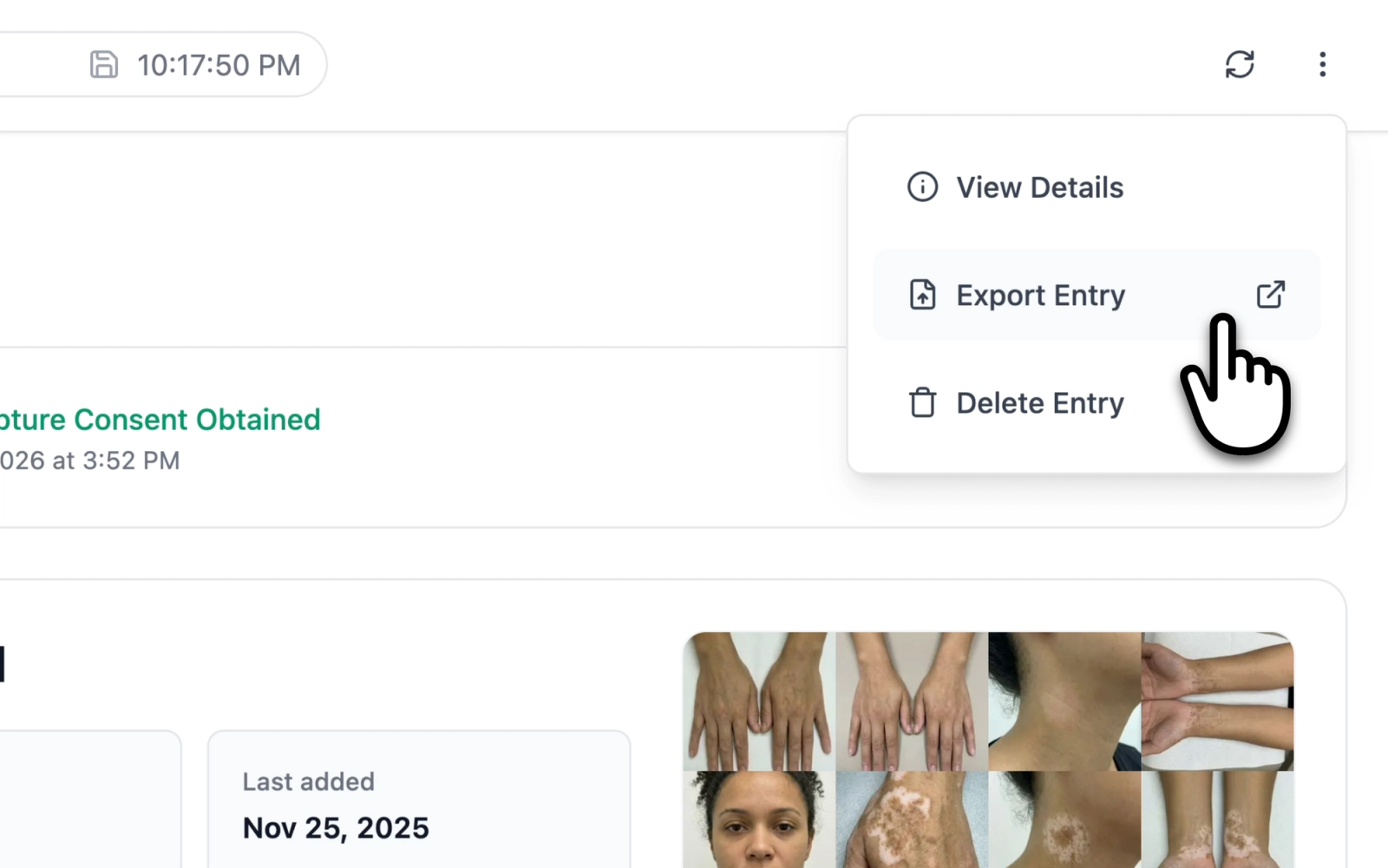
Illustrative demo with synthetic data. Learn more
Export Details opens its report directly. Every other action first opens the PDF Export Options drawer, which sets how annotations appear in the report:
- Annotations on individual images: a checkbox, selected by default
- For reports that include comparisons: As arranged (the visibility each comparison was saved with), All annotations shown, or All annotations hidden
The drawer starts from these defaults every time, whatever is shown on screen. Select Export PDF to open the report.
Illustrative demo with synthetic data. Learn more
Report Types
Clinical Entry Report
One clinical entry, for documenting or sharing a single visit:
- Patient ID and name
- Appointment date and the entry's created and last modified dates
- The entry's tags, including those inherited from its workspace images
- Clinical notes, with their formatting
- Workspace images with file names, captions, dates, and tags
- Comparison groups, rendered in split and overlay view, with their captions and images
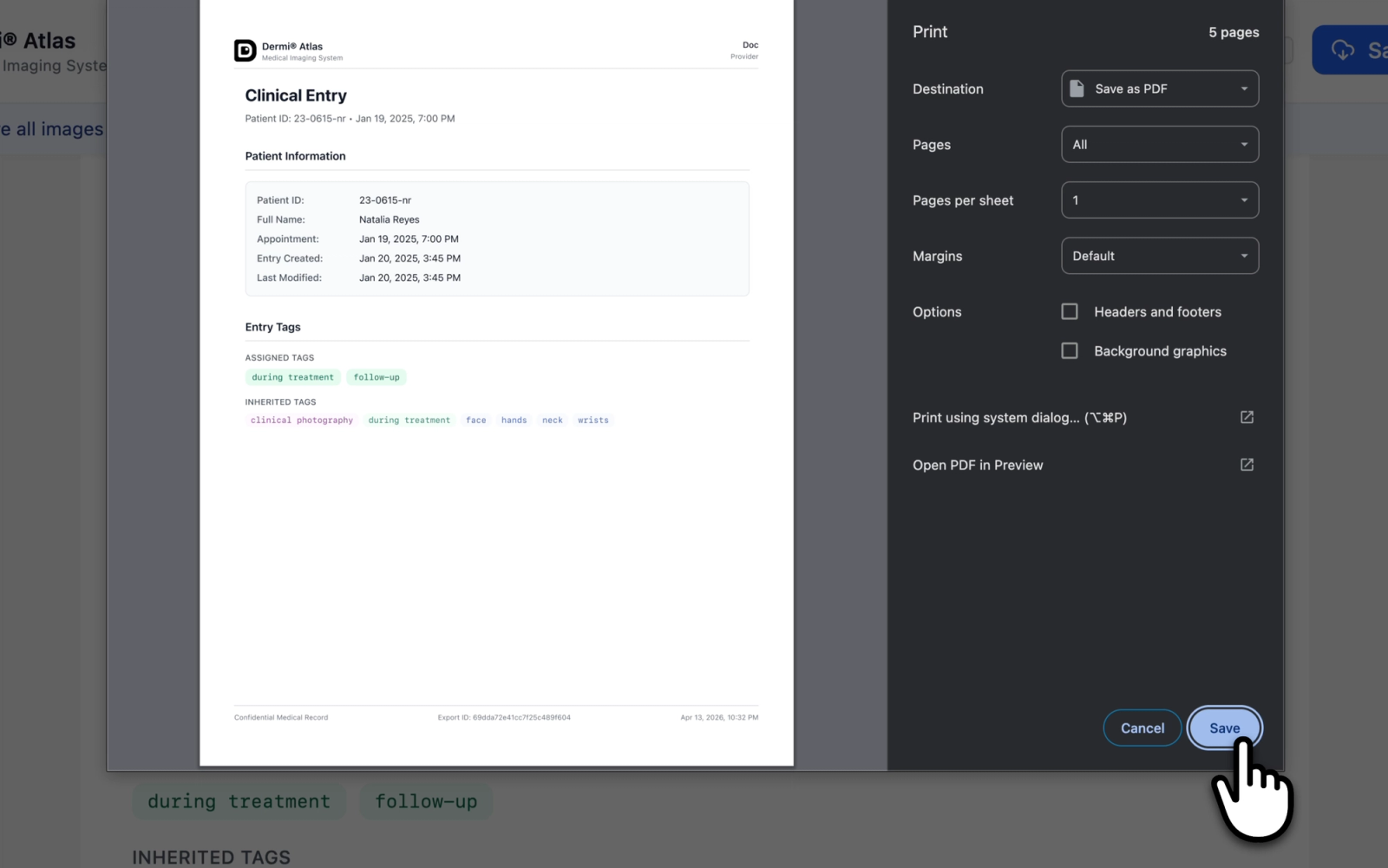
Illustrative demo with synthetic data. Learn more
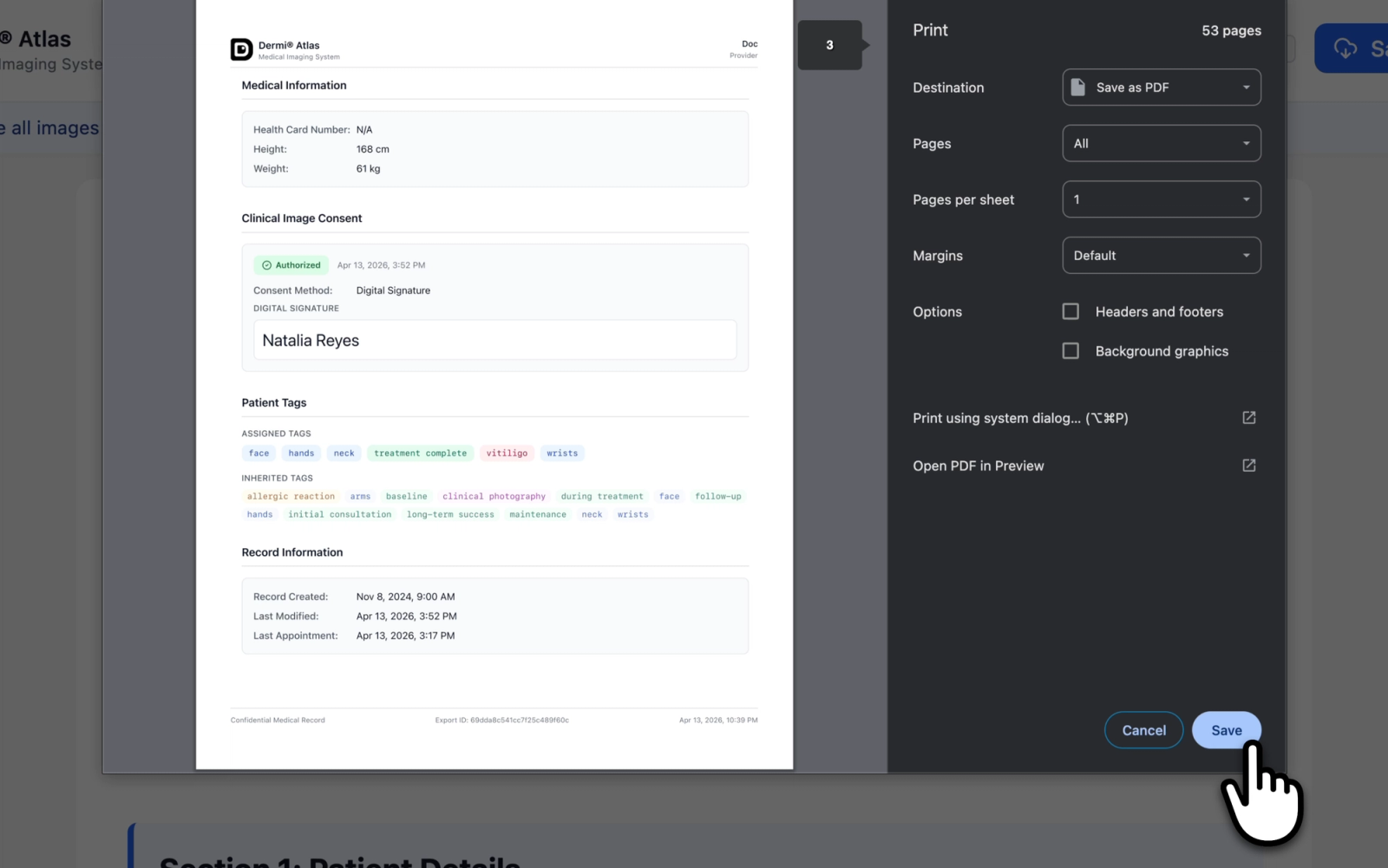
Patient Details Report
The patient profile as it stands at the time of export:
- Totals of images and entries, and the year the record was created
- Demographics, contact information, health card number, height, and weight
- The Clinical Image Consent section, when consent is recorded
- Patient tags
- Created, last modified, and last appointment dates
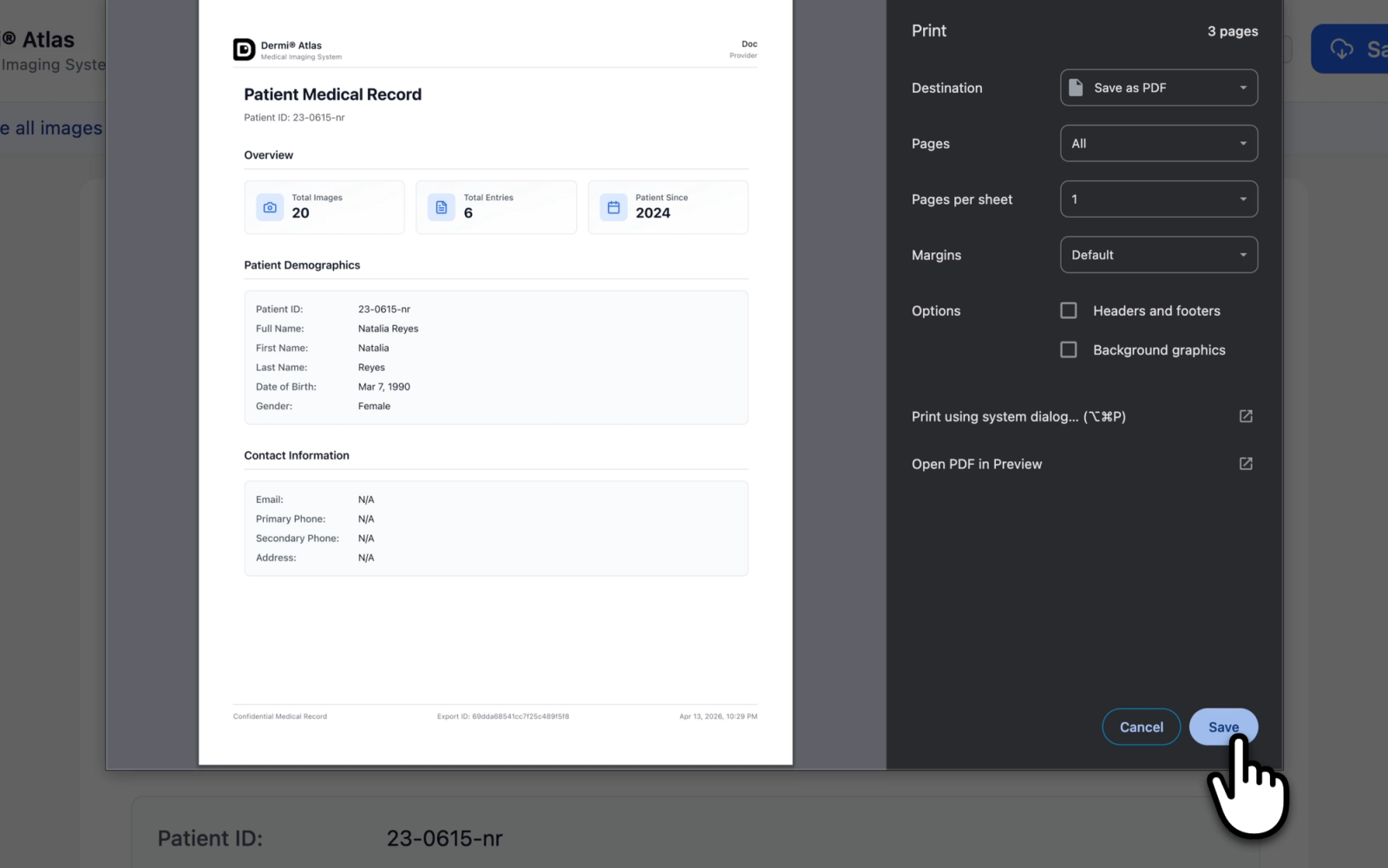
Illustrative demo with synthetic data. Learn more
Image Pool Report
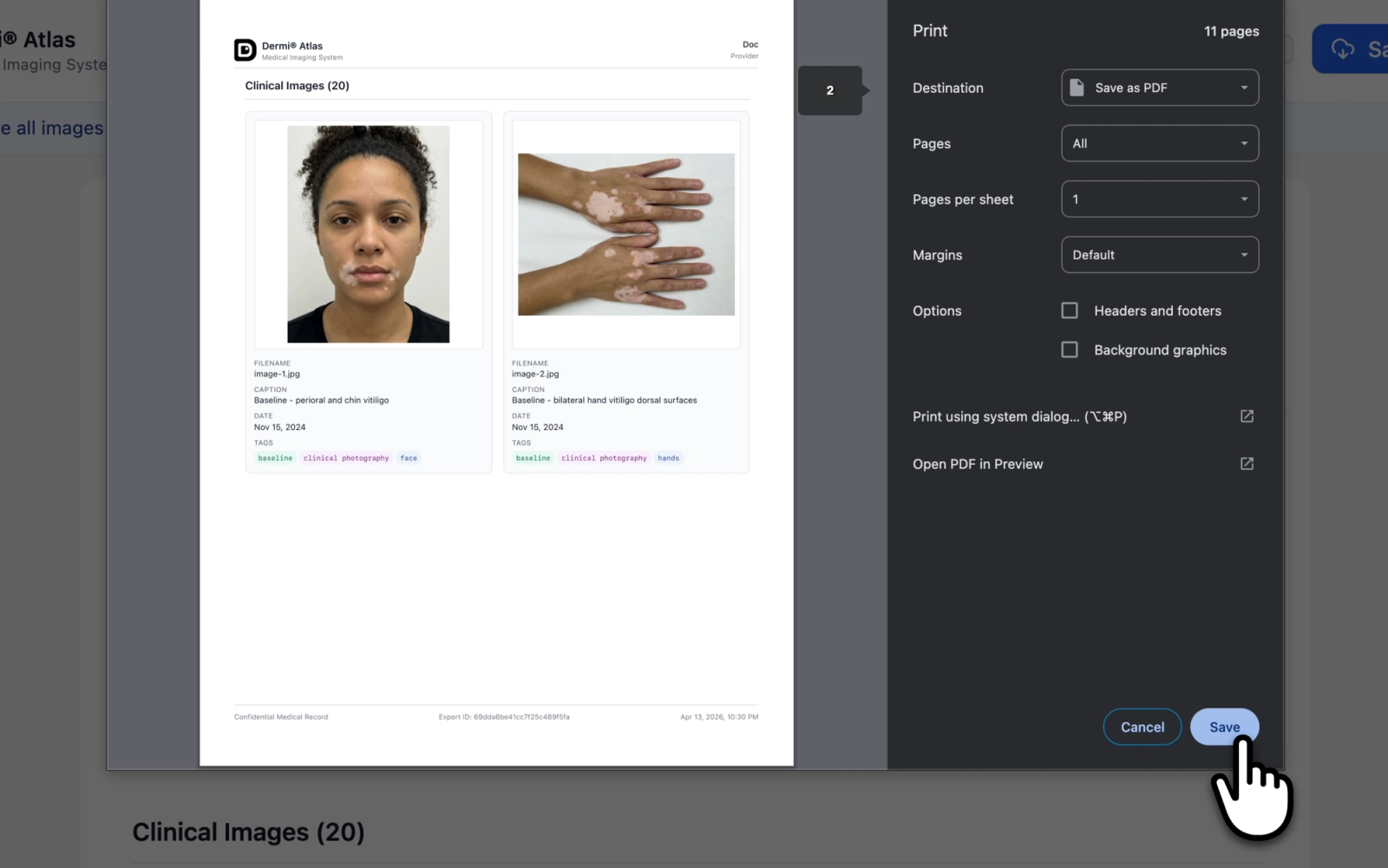
Every image of the patient, with its file name, caption, date, and tags. Images are grouped under Full Body Photography (by session and zone), then Zones, then Individual Images for those not held in a zone. An image in more than one zone appears under each.
Illustrative demo with synthetic data. Learn more
Full Body Photography Report
The patient's full body photography across visits:
- Patient ID, name, Patient Since date, and the number of sessions and lesions on record
- A lesion summary
- Each session with its zones and images
Full Body Photography Session
One full body session:
- Patient ID, name, and session date
- Pose coverage, such as "12 of 14 poses"
- A summary of the lesions documented in the session
- The session's zones and images, its notes, and any skipped poses
Complete Patient Report
The whole record in one document, for a referral, a second opinion, or archiving:
- Report Contents: the four sections with their counts
- Section 1: Patient Details: as in the Patient Details Report
- Section 2: Full Body Photography: the lesion summary and each session
- Section 3: Image Pool: as in the Image Pool Report, with full body images summarized in one line that points to Section 2
- Section 4: Clinical Entries: each entry in full, most recent first, numbered
Each section and each entry starts on a new page.
Illustrative demo with synthetic data. Learn more
The PDF Preview
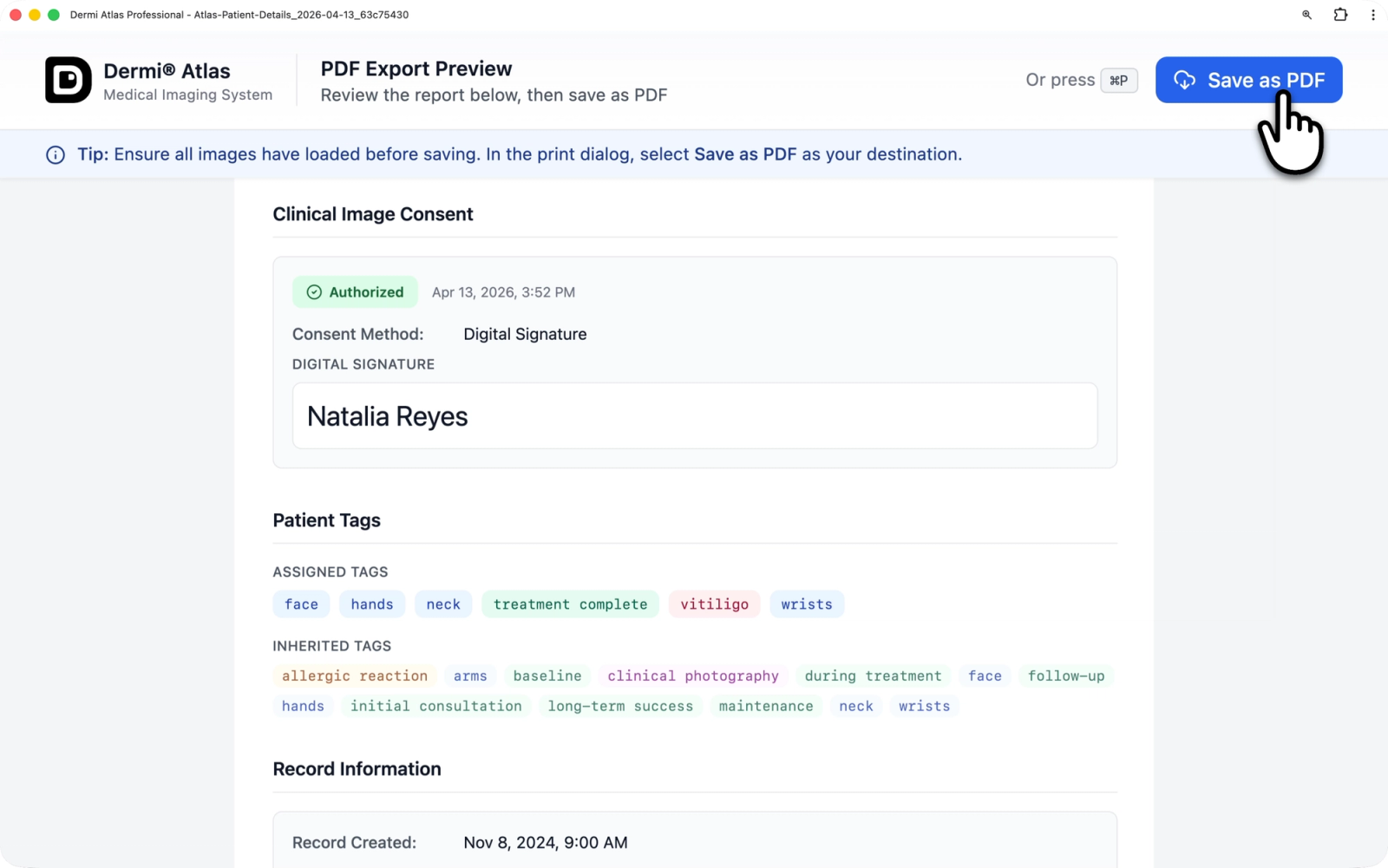
Every page of the report carries a header with the Dermi Atlas logo and the provider who generated it, and a footer with "Confidential Medical Record", an Export ID, and the date and time of export. When the export options hid annotations that the records carry, the footer also says which were hidden. The layout is fixed, and everything in the chosen scope is included.
A banner above the report holds the Save as PDF button, the keyboard shortcut (Ctrl+P, or Command+P on a Mac), and a reminder to let every image load before saving. The banner does not appear in the saved file.
Illustrative demo with synthetic data. Learn more
Save the File
- Select Save as PDF in the banner, or press the keyboard shortcut.
- In the browser print dialog, choose Save as PDF as the destination.
- Choose a location and save.
The suggested file name holds the report type, the date, and a short identifier, such as Atlas-Clinical-Entry-Report_2026-04-13_a1b2c3d4, and can be changed before saving.
Desktop Chrome and Edge give the most consistent result. In Safari, a banner on the preview recommends one of those browsers or the File => Export as PDF command in Safari on a desktop.
Reports in the Activity Log
When the deployment records comprehensive activity (the default audit logging level), each opened report adds an entry to the Patient Activity Logs, under the Reports filter, with the report type, the export options, and the Export ID printed in the footer. The entry is added when the preview opens.
Related Resources
- Exporting Images with Custom Export for single images and comparisons
- Documenting Full Body Photography Sessions for the sessions behind the full body reports
- Clinical Image Consent for the consent section
- Audit Logging Configuration for reading export entries
Was this article helpful?
Your feedback helps improve the documentation
Still have questions?
Typical response within 24 hours.
Synthetic Data Notice
All demonstrations, screenshots, and media on this page use synthetic data only. No real patient information is shown.
The following are synthetic and do not correspond to real patients:
- All human faces and individuals are synthetic and do not represent real people
- All clinical and medical images, including photographs and scans, are synthetic or simulated
- All patient names, dates, identifiers, and other details are fictional
- All clinical notes and documentation are sample content for demonstration only
Media is provided solely to illustrate platform functionality and workflows.