/
Clinical Image Consent
Set the consent enforcement level in Dermi Atlas, record a patient's consent for clinical photography by digital signature or external verification, and revoke it.
Updated September 29, 20265 min read
Dermi Atlas records a patient's consent for clinical photography on the patient record, either as a digital signature captured in Atlas or as a verification of consent obtained outside it. An enforcement level decides whether Atlas reminds the team to record consent or holds image capture until it is recorded.
Clinician and Assistant accounts can both record and revoke consent.
Consent Enforcement Levels
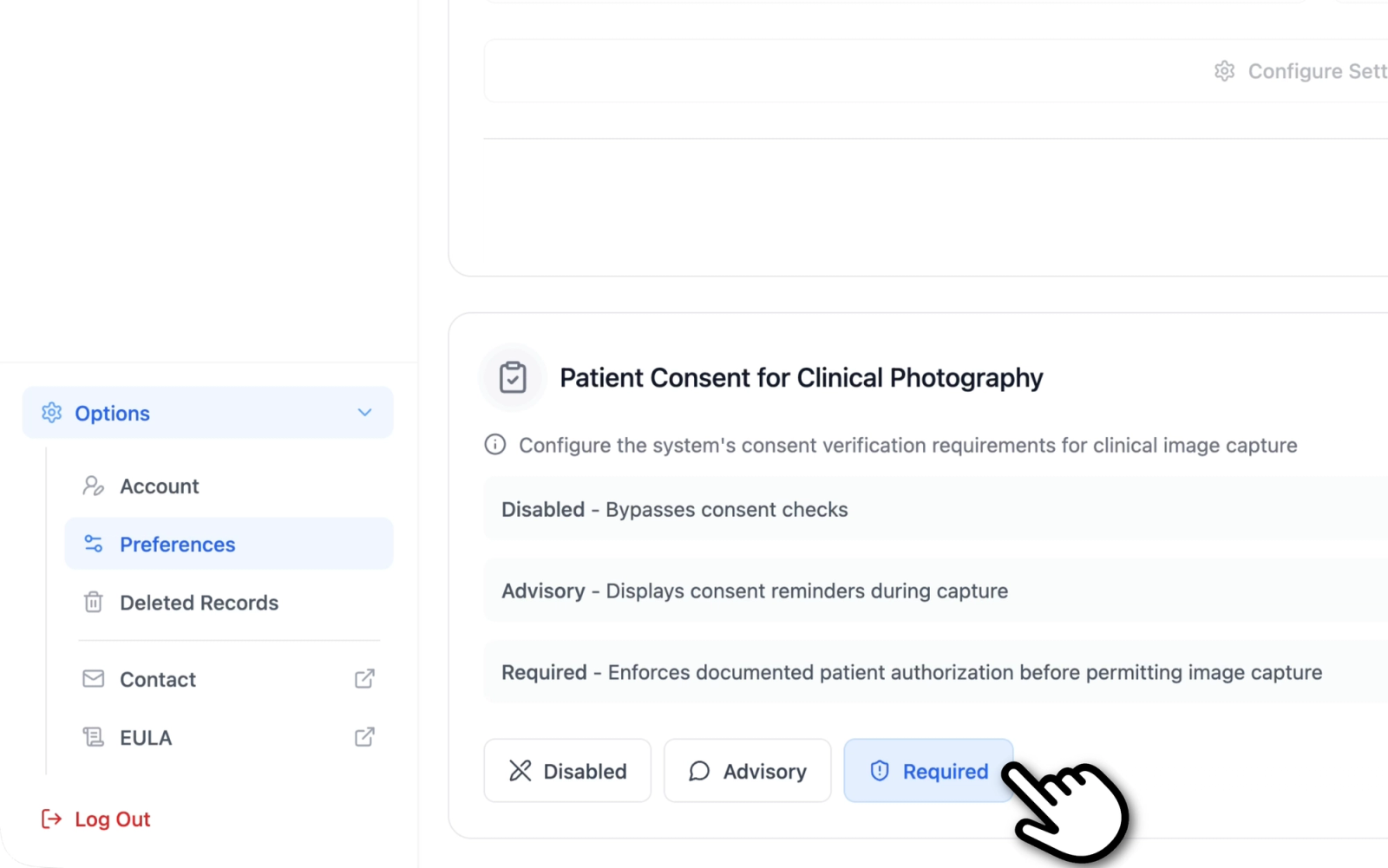
The enforcement level is a setting of each account, under Preferences. It applies to every patient that account opens, and each team member sets their own. Three levels are available:
- Disabled: no consent prompts and no upload restriction. This is the default for every account.
- Advisory: a blue "Patient Photography Consent Advisory" banner appears on the patient's pages until consent is recorded, with a Document Consent button. Uploads are not restricted.
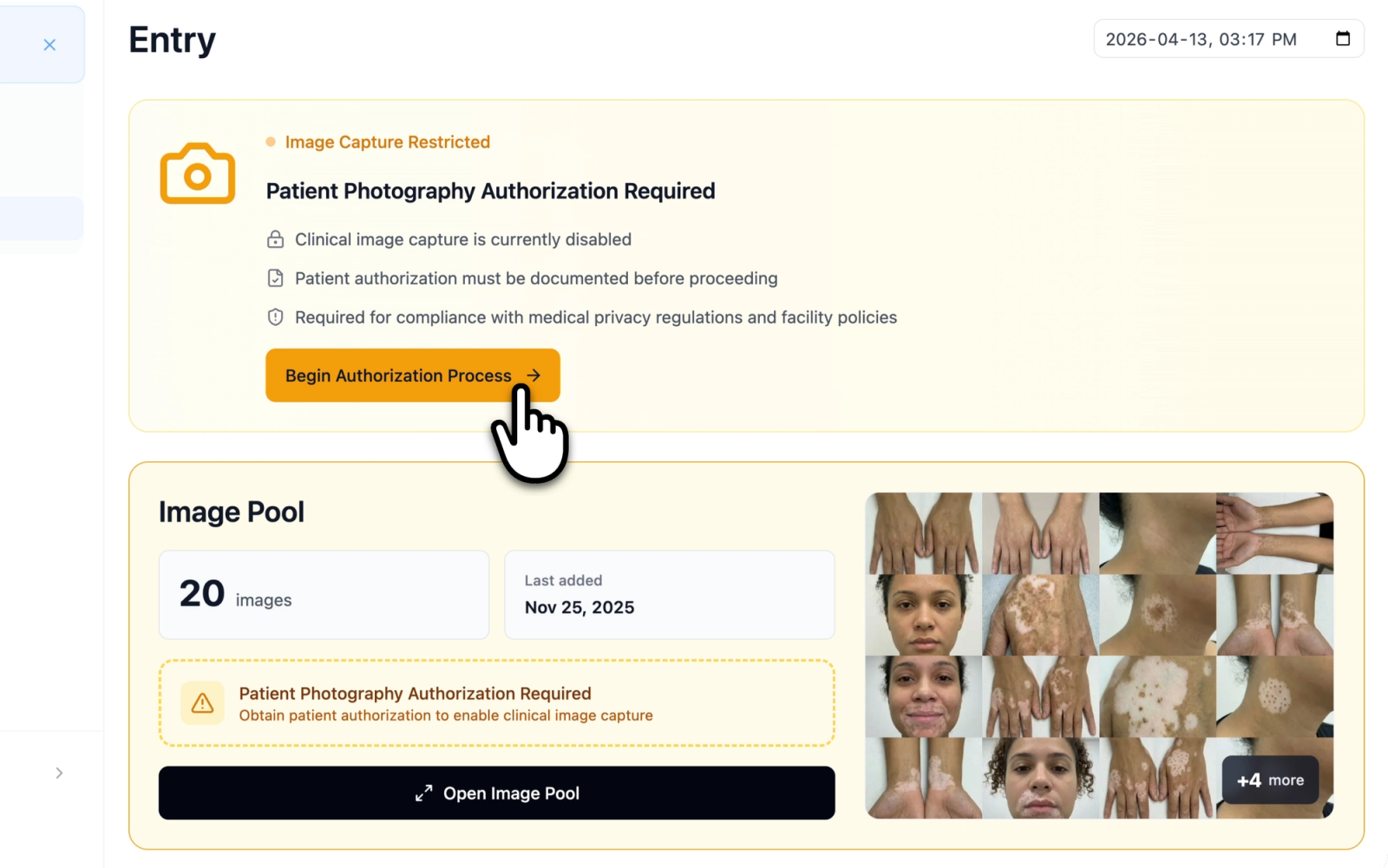
- Required: an amber "Patient Photography Authorization Required" banner appears on the patient's pages until consent is recorded, with a Begin Authorization button, and image capture for that patient is held, as described under What Required Restricts below.
The banners appear on the Patient Details, entry, Image Pool, and Full Body Photography pages.
Illustrative demo with synthetic data. Learn more
Set the Enforcement Level
- Open Preferences from the sidebar.
- In the Patient Consent for Clinical Photography card, select Disabled, Advisory, or Required.
- Select Save Changes. A "Preferences updated" notification confirms the change.
Illustrative demo with synthetic data. Learn more
Illustrative demo with synthetic data. Learn more
What Required Restricts
For an account set to Required, the following are held for a patient without recorded consent:
- Image Pool uploads: drag-and-drop and file picker uploads are refused on the Image Pool page and in the Image Pool drawer of an entry. An empty pool shows "Patient Photography Authorization Required" in place of the upload area; a pool that already holds images shows the same title in a banner above them.
- Zone editing: zones in the Image Pool cannot be created or changed.
- Full body photography: Start Session is disabled, and photographs added during capture or review are refused.
A refused upload, in the Image Pool or during capture or review, shows a "Cannot upload images" notification. The restriction lifts as soon as consent is recorded and returns if consent is revoked. Images already in the record stay available to view, compare, and export.
Record Consent
Select Document Consent or Begin Authorization on the banner to open the consent drawer. On the Patient Details page, unsaved changes to the patient record are saved or discarded first.
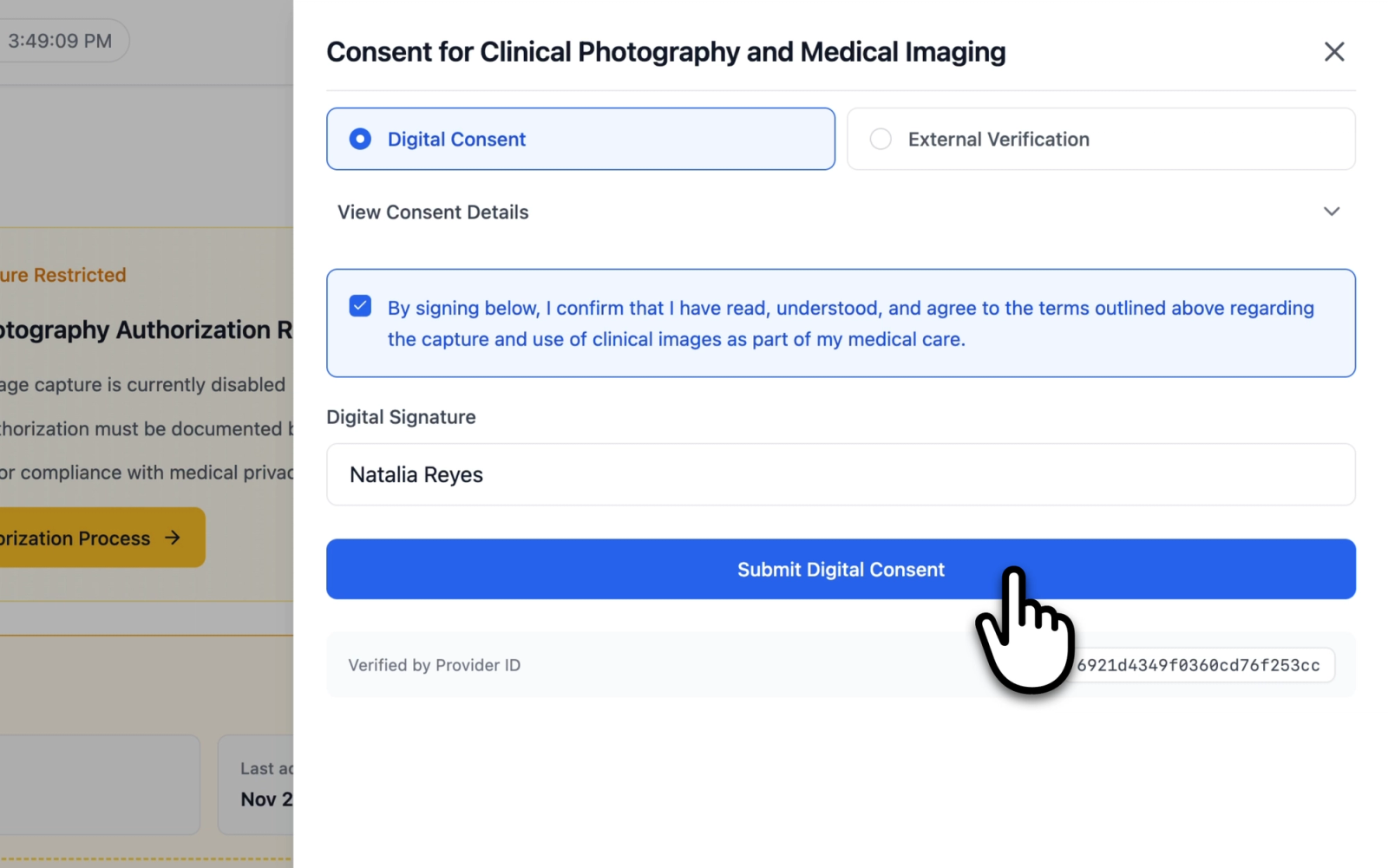
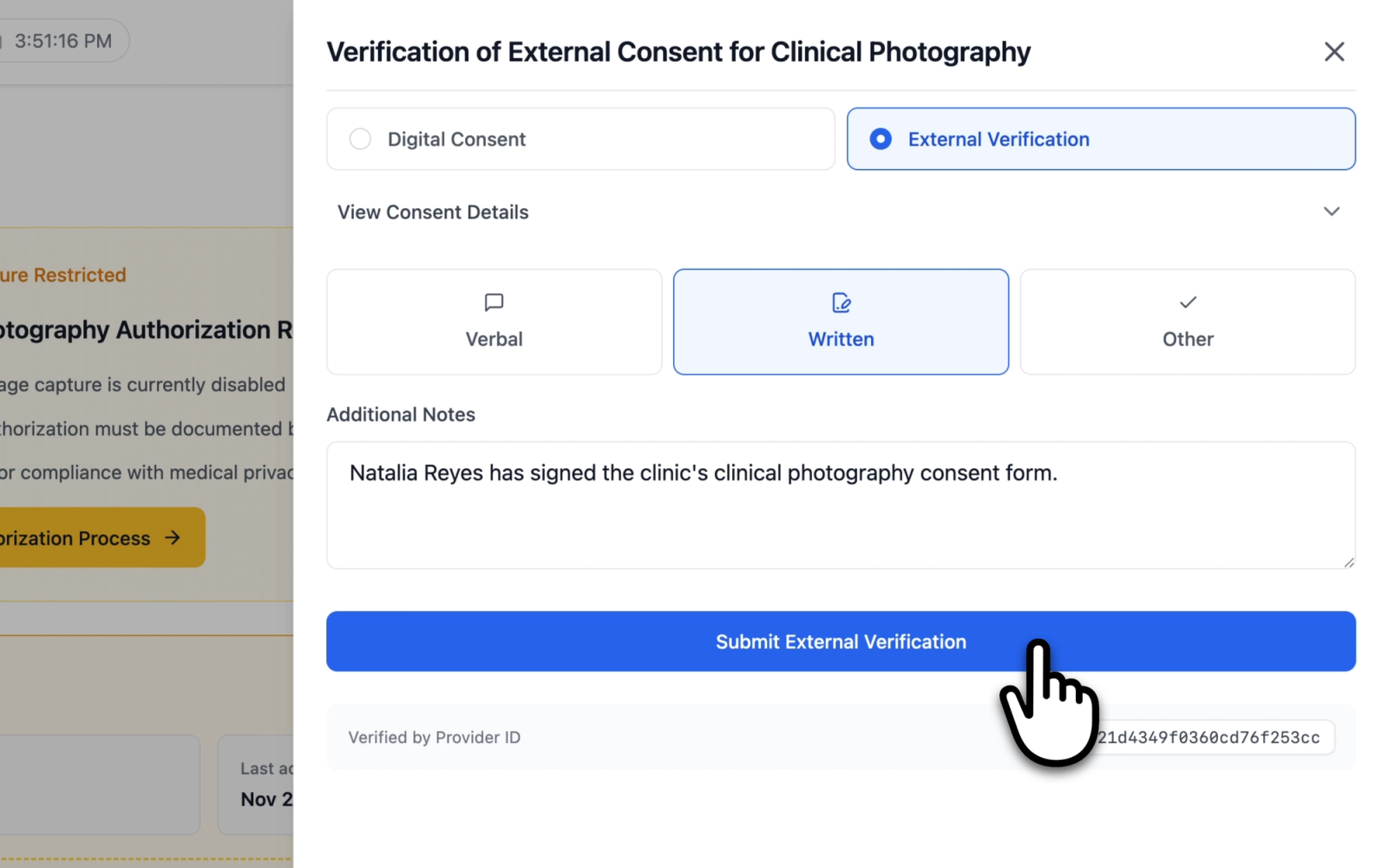
The drawer offers two methods, Digital Consent and External Verification. View Consent Details expands the full text of the selected method.
Illustrative demo with synthetic data. Learn more
Digital Consent
Digital Consent records the patient's own agreement in Atlas, for example on a tablet during the appointment. The drawer is titled "Consent for Clinical Photography and Medical Imaging", and its details set out the purpose of the images, how they are used and protected, and the patient's rights, including withdrawing consent in writing at any time.
- The patient reads the consent details.
- The patient checks the box beside "By signing below, I confirm that I have read, understood, and agree to the terms outlined above regarding the capture and use of clinical images as part of my medical care."
- The patient types their full name in the Digital Signature field, which appears once the box is checked.
- Select Submit Digital Consent.
Illustrative demo with synthetic data. Learn more
External Verification
External Verification records consent obtained outside Atlas, such as a signed paper form or verbal agreement during a consultation. The drawer is titled "Verification of External Consent for Clinical Photography", and its details hold the provider attestation being recorded.
- Select the method: Verbal, Written, or Other.
- Optionally, describe how consent was obtained in Additional Notes.
- Select Submit External Verification.
Illustrative demo with synthetic data. Learn more
Viewing Recorded Consent
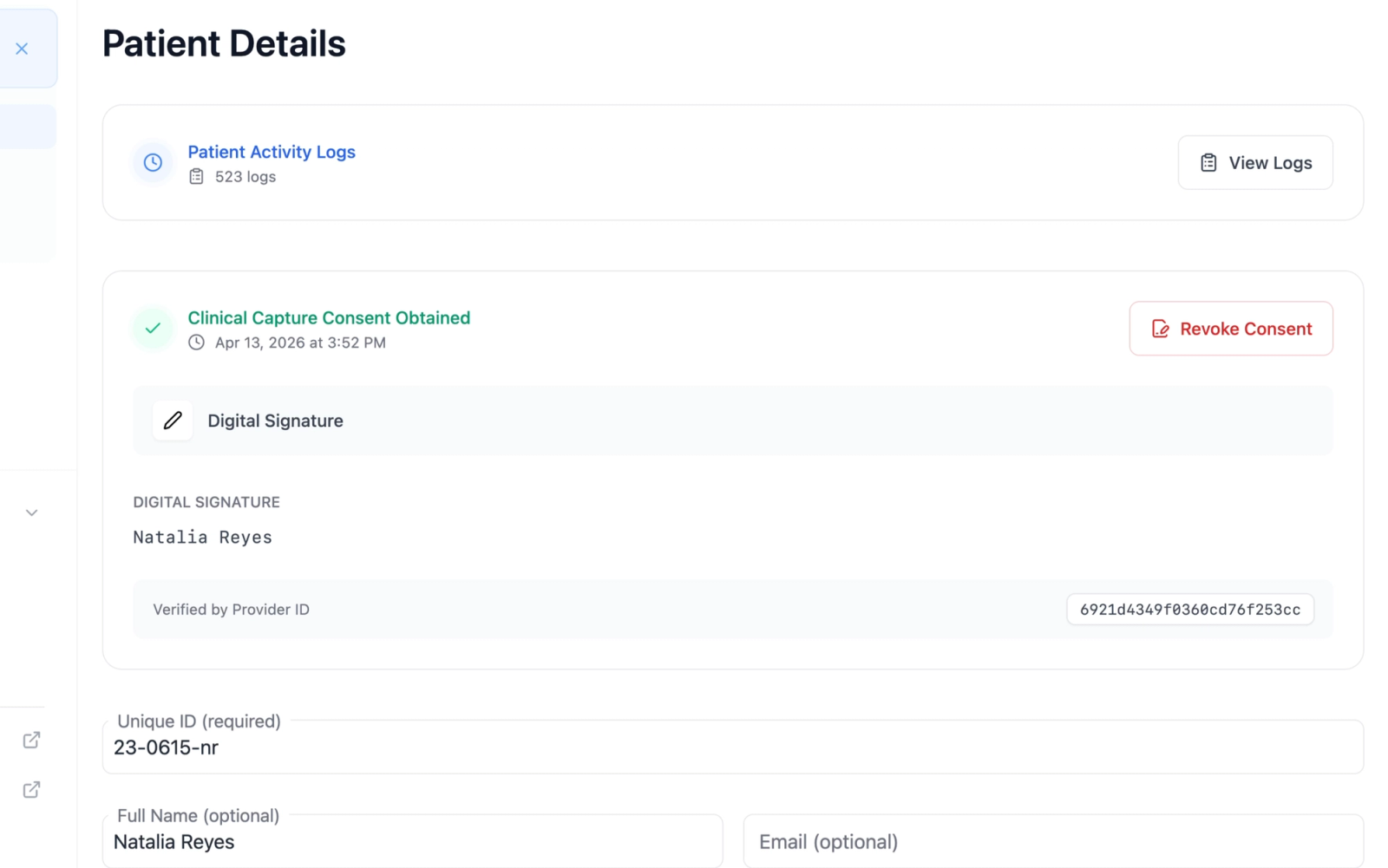
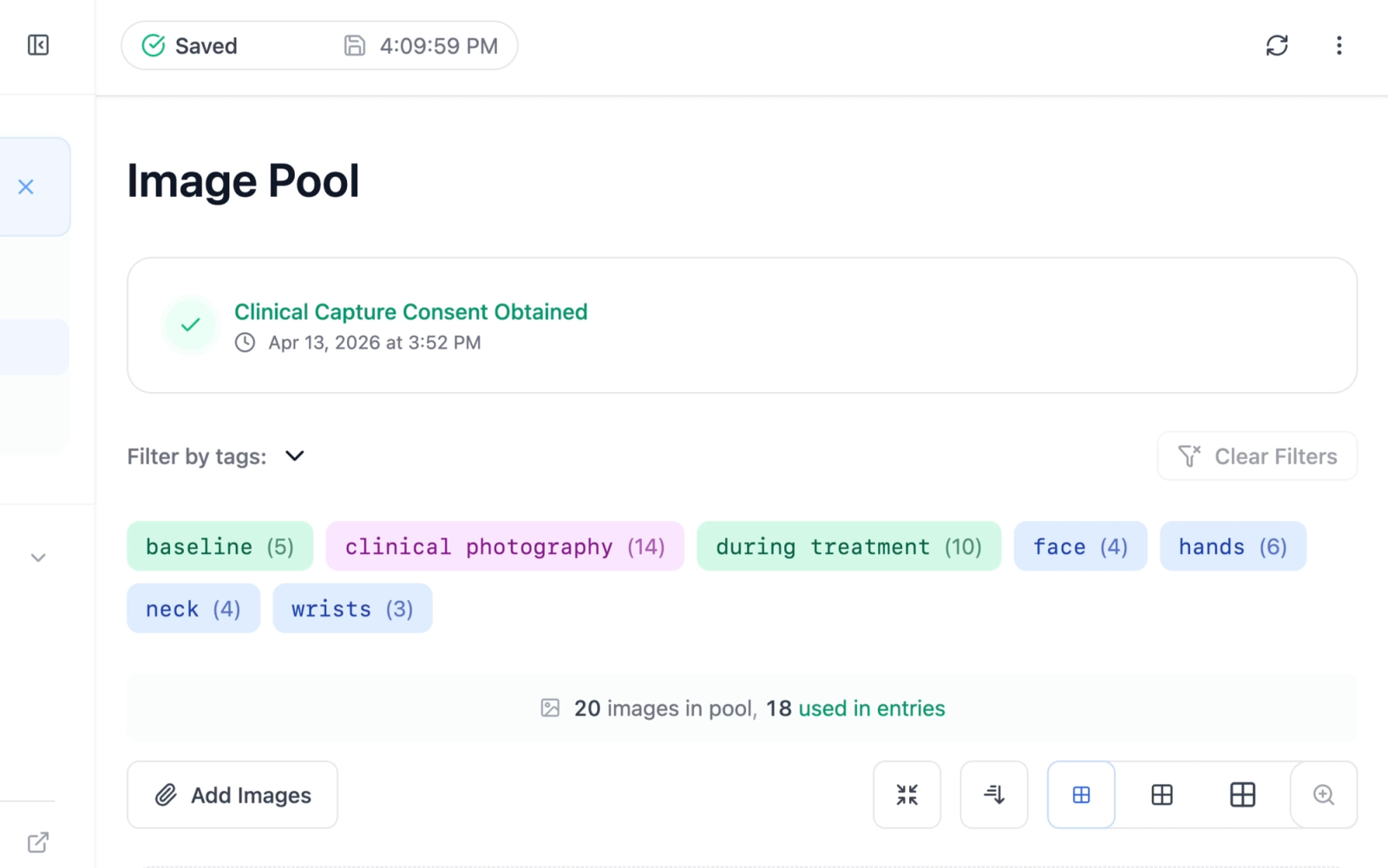
Once consent is recorded, a "Clinical Capture Consent Obtained" card with the date and time replaces the banner on every page of the patient.
On the Patient Details page, the card also shows the method (Digital Signature, Verbal Consent, Written Consent, or Other Method), the typed signature or the notes, and the Revoke Consent button. On the entry, Image Pool, and Full Body Photography pages, the card shows the status and time only.
Illustrative demo with synthetic data. Learn more
Illustrative demo with synthetic data. Learn more
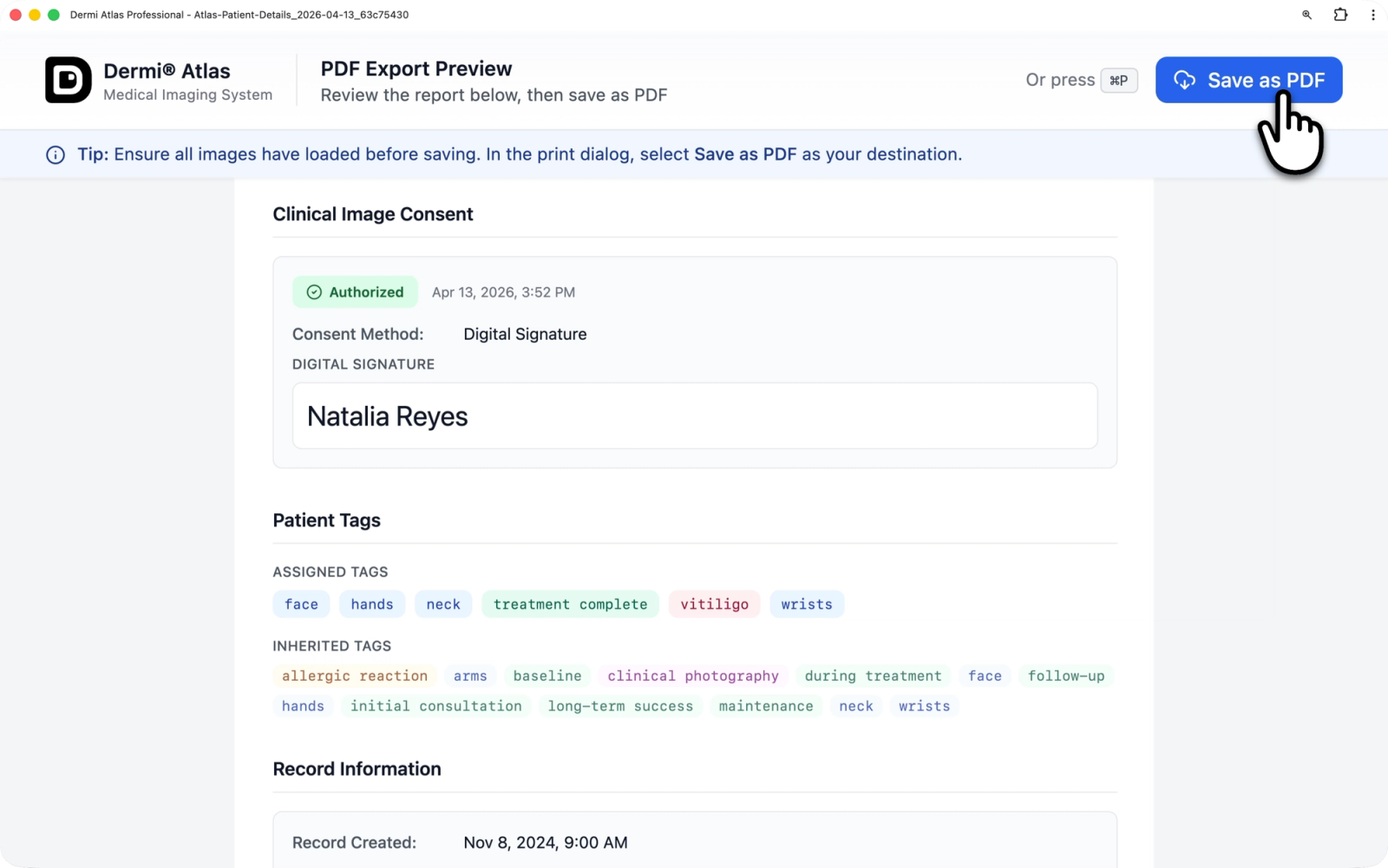
The Export Details and Export Full Report PDF reports include a Clinical Image Consent section when consent is recorded, with an Authorized badge, the date and time, the method, and the signature or the external method and notes.
Illustrative demo with synthetic data. Learn more
Revoke Consent
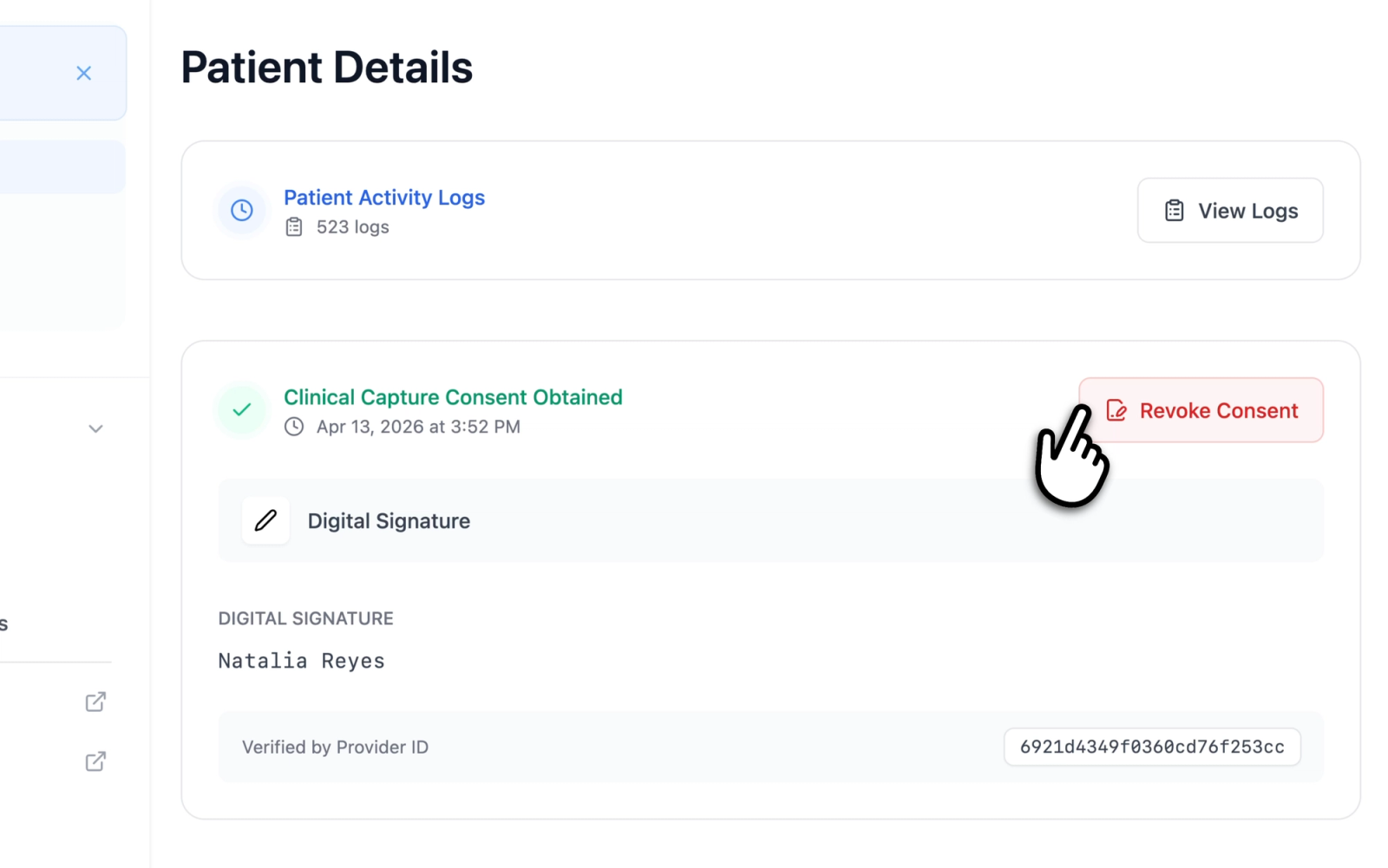
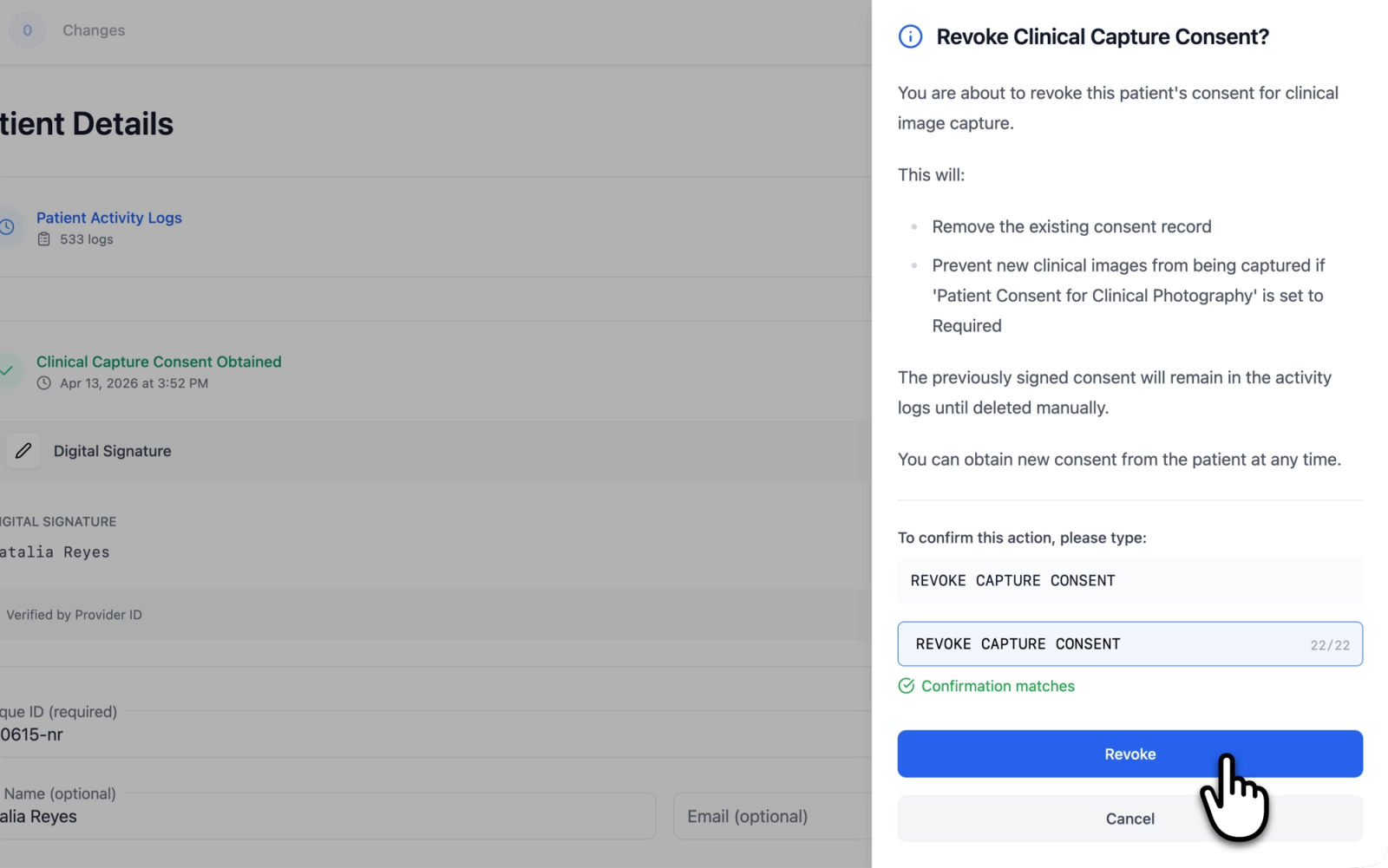
- On the Patient Details page, select Revoke Consent on the consent card.
- Type REVOKE CLINICAL CAPTURE CONSENT in the confirmation field.
- Select Revoke Consent.
The consent record is removed from the patient, and the banner returns for every account set to Advisory or Required. New consent can be recorded at any time.
Illustrative demo with synthetic data. Learn more
Illustrative demo with synthetic data. Learn more
Illustrative demo with synthetic data. Learn more
Consent in the Activity Log
When the deployment records comprehensive activity (the default Audit Logging level in Dermi Atlas Manager), recording and revoking consent each add an entry to the Patient Activity Logs, under the Consent filter. The entry names the account that acted and holds the consent details at that moment, so a revoked consent stays on record after it is removed from the patient.
Related Resources
- Uploading and Organizing Images for the Image Pool
- Documenting Full Body Photography Sessions for full body capture
- Generating PDF Reports for the reports that carry the consent section
- Audit Logging Configuration for the activity levels
Was this article helpful?
Your feedback helps improve the documentation
Still have questions?
Typical response within 24 hours.
Synthetic Data Notice
All demonstrations, screenshots, and media on this page use synthetic data only. No real patient information is shown.
The following are synthetic and do not correspond to real patients:
- All human faces and individuals are synthetic and do not represent real people
- All clinical and medical images, including photographs and scans, are synthetic or simulated
- All patient names, dates, identifiers, and other details are fictional
- All clinical notes and documentation are sample content for demonstration only
Media is provided solely to illustrate platform functionality and workflows.