/
Uploading and Organizing Images
Upload photographs to a patient's Image Pool in Dermi Atlas, organize the pool by date, sort order, view, and tags, and use its images in entries and exports.
Updated September 29, 20265 min read
Every patient in Dermi Atlas has one Image Pool, which holds every photograph of the patient. Clinical entries draw on the pool: the photographs relevant to a visit are added to that entry's workspace, and comparisons are built from there.
The Image Pool
The Image Pool is reached in two places:
- The Image Pool page, opened from Image Pool in the sidebar while a patient is open.
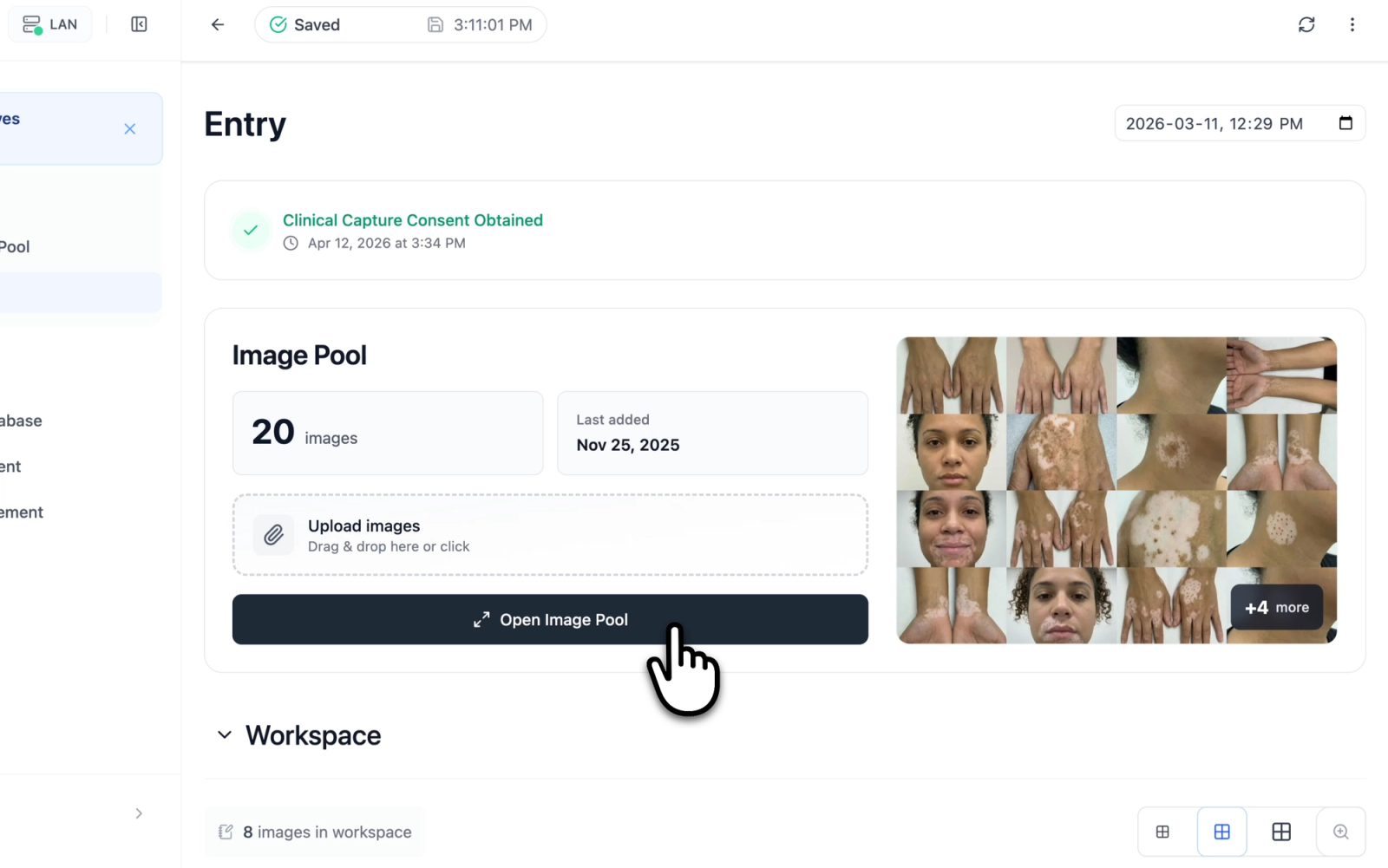
- The Image Pool card in a clinical entry, which shows the image count, the date of the latest image, and up to 16 thumbnails. Open Image Pool opens the full pool over the entry, and Add First Image starts the first upload into an empty pool.
The toolbar reports how many images the pool holds, together with how many are used in entries on the Image Pool page, or how many are in the workspace of the open entry. Uploads, captions, and tag changes save as they are made, and the sync status pill in the header reports each save; see Real-Time Synchronization Across Devices.
Illustrative demo with synthetic data. Learn more
Illustrative demo with synthetic data. Learn more
Uploading Images
Photographs are added in two ways:
- Add Images opens the file picker to select one or more files from the device.
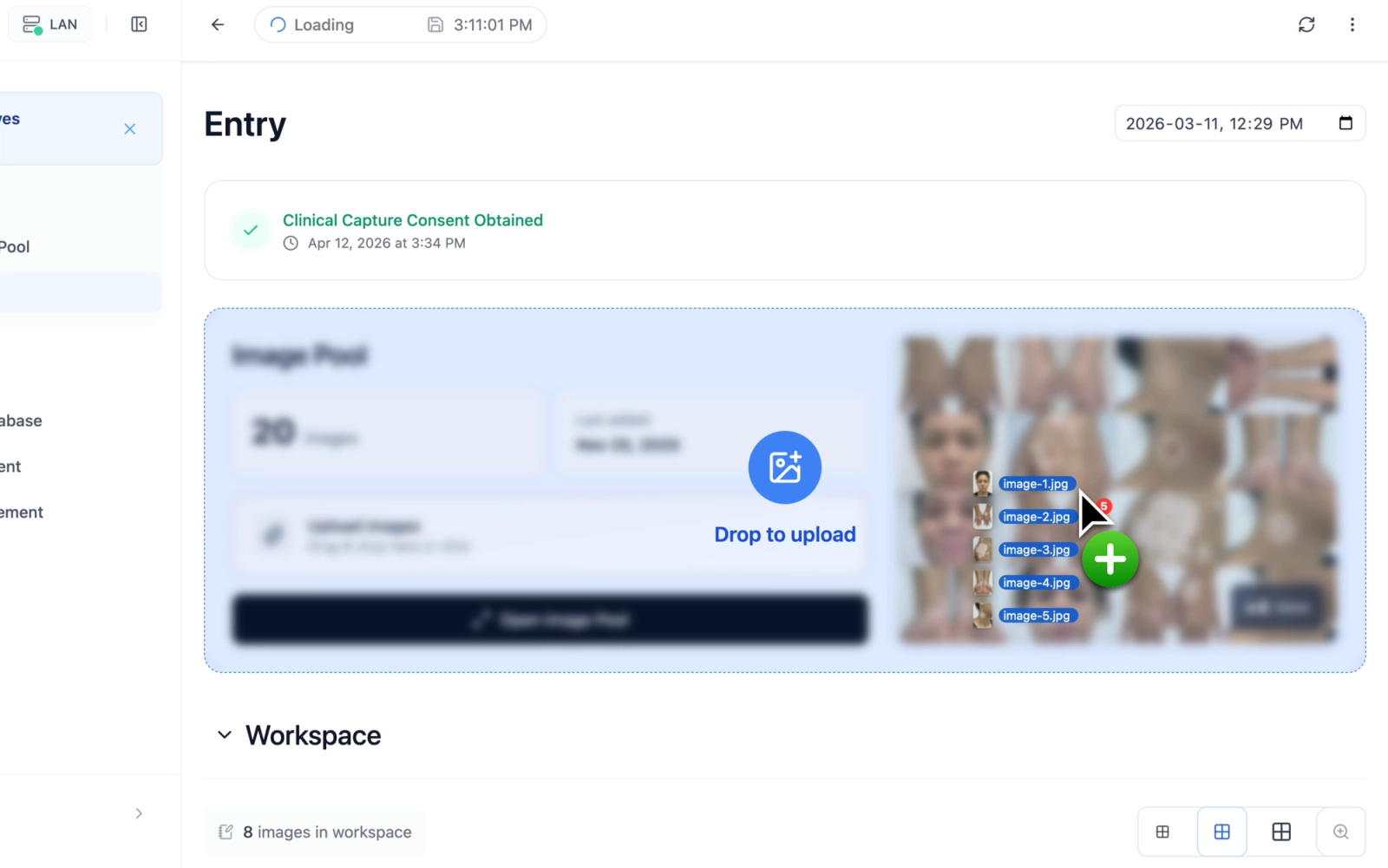
- Drag and drop: files dragged over the pool show a "Drop to upload" overlay and upload when dropped.
An empty pool reads "Add new images here", with the prompt "Drag & drop or use the button to select files".
Uploads follow these limits:
- Formats: JPEG, PNG, WebP, AVIF, TIFF, and GIF. TIFF files are stored as PNG.
- Size: up to 33 MB per file and 100 megapixels per image.
- Batch: up to 50 files per drop or selection.
Files in another format or over 33 MB are skipped, and a notification states how many; the rest of the batch uploads. A selection of more than 50 valid files is refused as a whole, with a request to upload in smaller batches.
Each image appears in the grid right away with a progress indicator. It is filed under the date the photo was taken, when the file records it, and under the upload time otherwise. The date can be changed in the Image Properties drawer; see Viewing Images.
Illustrative demo with synthetic data. Learn more
Illustrative demo with synthetic data. Learn more
On iPhone and iPad, Dermi Atlas Companion also captures new photos straight into the pool, with an earlier photograph shown over the camera so the framing matches; see Capturing Photos with Atlas Companion.
Consent and License Requirements
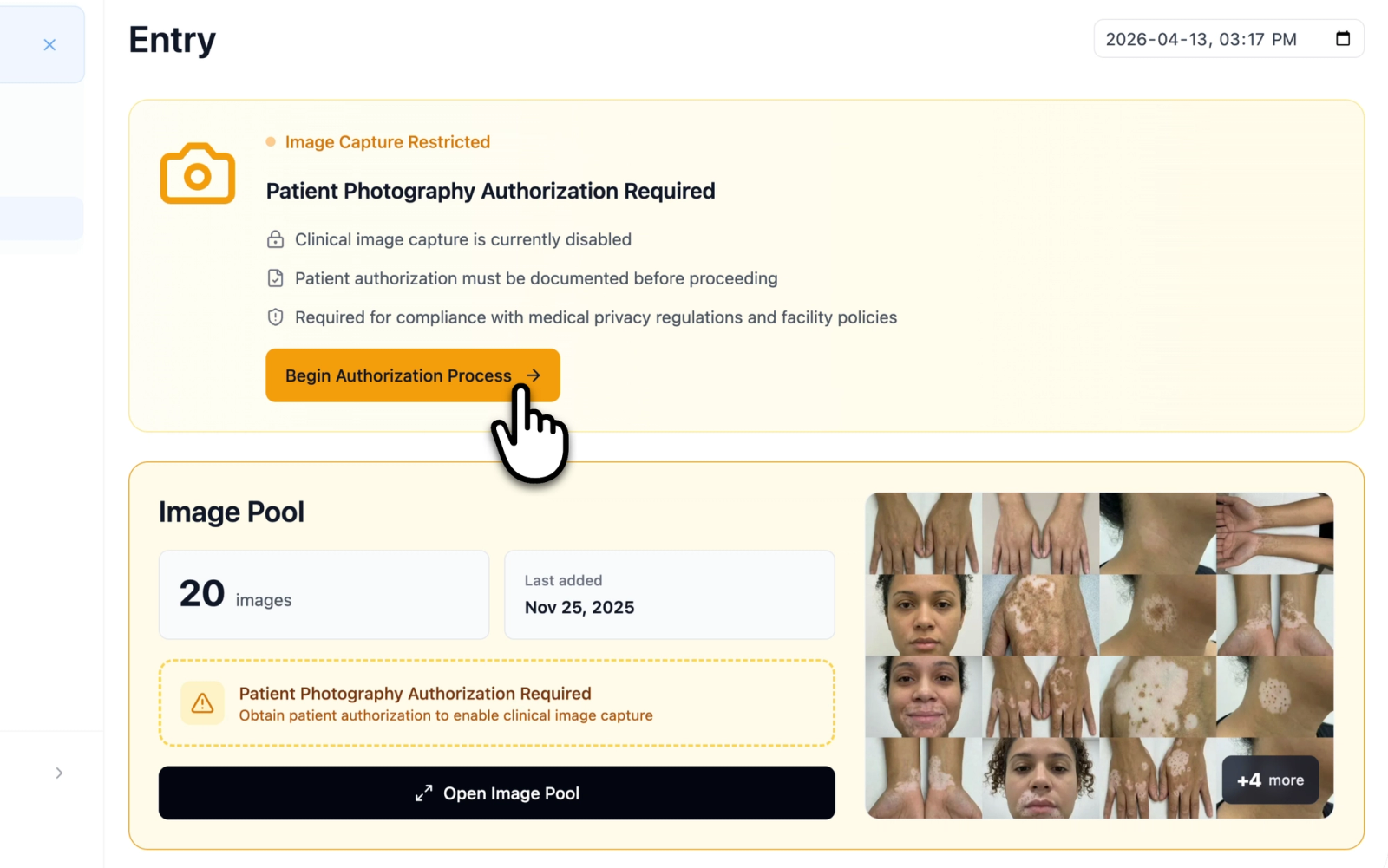
When the account's consent enforcement level is Required and no consent is recorded for the patient, uploads are blocked. An amber notice stating that patient photography authorization is required appears above the grid, or fills an empty pool; existing images stay visible and usable, and zones cannot be created or edited until consent is recorded. Uploads are also unavailable without an active Atlas license. Recording consent is covered in Clinical Image Consent.
Illustrative demo with synthetic data. Learn more
Organizing the Pool
Illustrative demo with synthetic data. Learn more
Date Groups
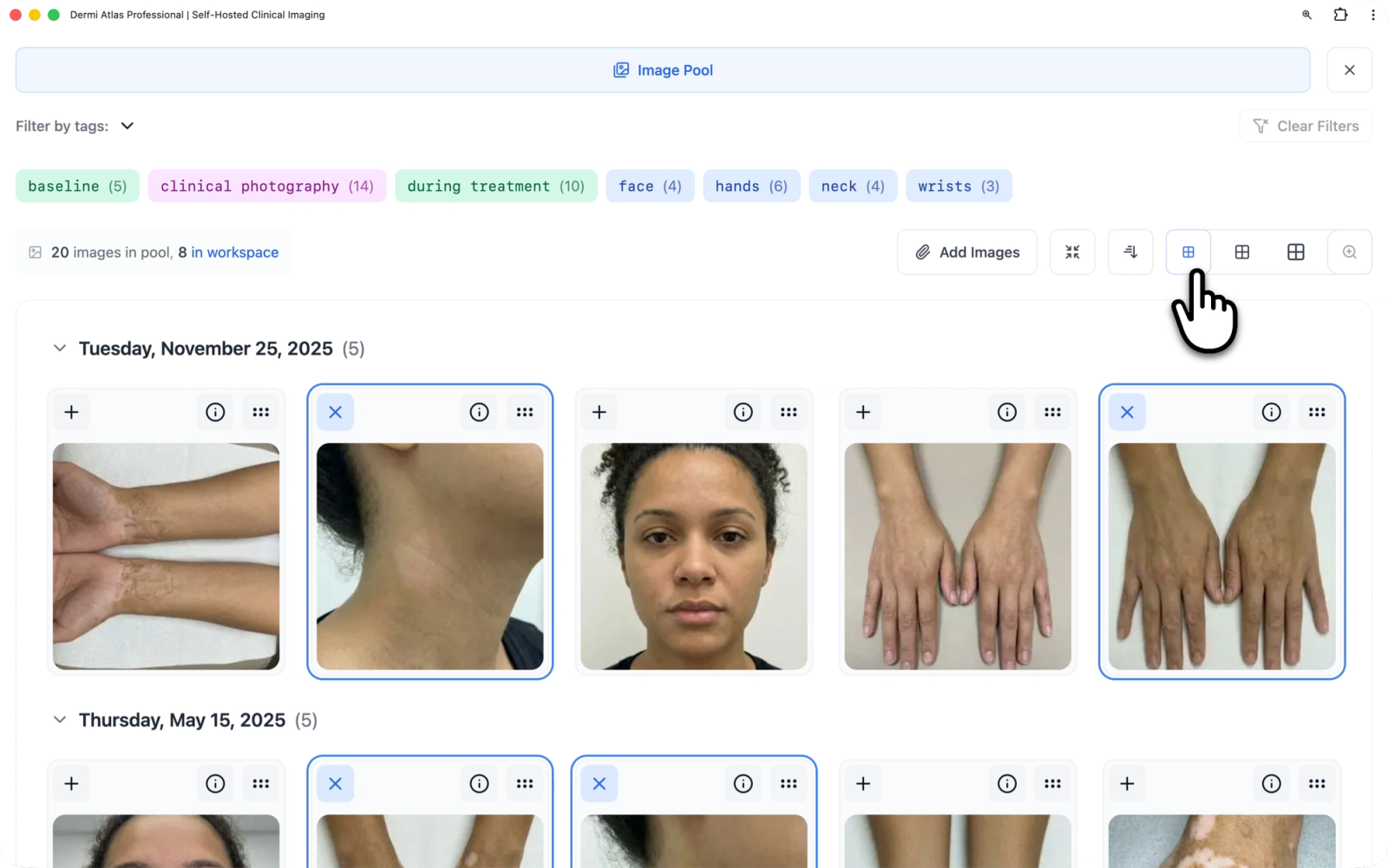
Images are grouped by date, under a header such as "Wednesday, March 12, 2025" with the number of images on that date. Selecting a header collapses or expands its group, and Expand All Dates and Collapse All Dates in the toolbar act on every group at once. Within a date, photographs of one body area can be gathered into a zone card; see Organizing Images with Zones.
Sort Order and View
The sort control switches between newest first and oldest first, both across date groups and within each group. The view toggle switches between two presentations:
- Card View shows each image with its thumbnail, file name, up to five tag chips (with a "+N" chip for the rest), caption, date, and the number of entries that use it. Captions can be edited directly on the card.
- List View shows each image as a compact row, which fits more of a large pool on screen.
Atlas remembers the sort order and view for the account; newest first and Card View are the defaults. The annotation overlay control beside them shows or hides annotations on the image thumbnails; see Annotating Clinical Images.
Illustrative demo with synthetic data. Learn more
Filtering by Tags
The collapsible "Filter by tags:" section at the top of the pool lists every tag assigned to an image in the pool, each in its category color with the number of images carrying it. Selecting tags narrows the pool to the images that carry any of them, and a badge shows how many filters are active. Clear Filters removes them all. When no image matches, the pool reads "No images match the search criteria." Tags themselves are created and assigned as described in Tag Management.
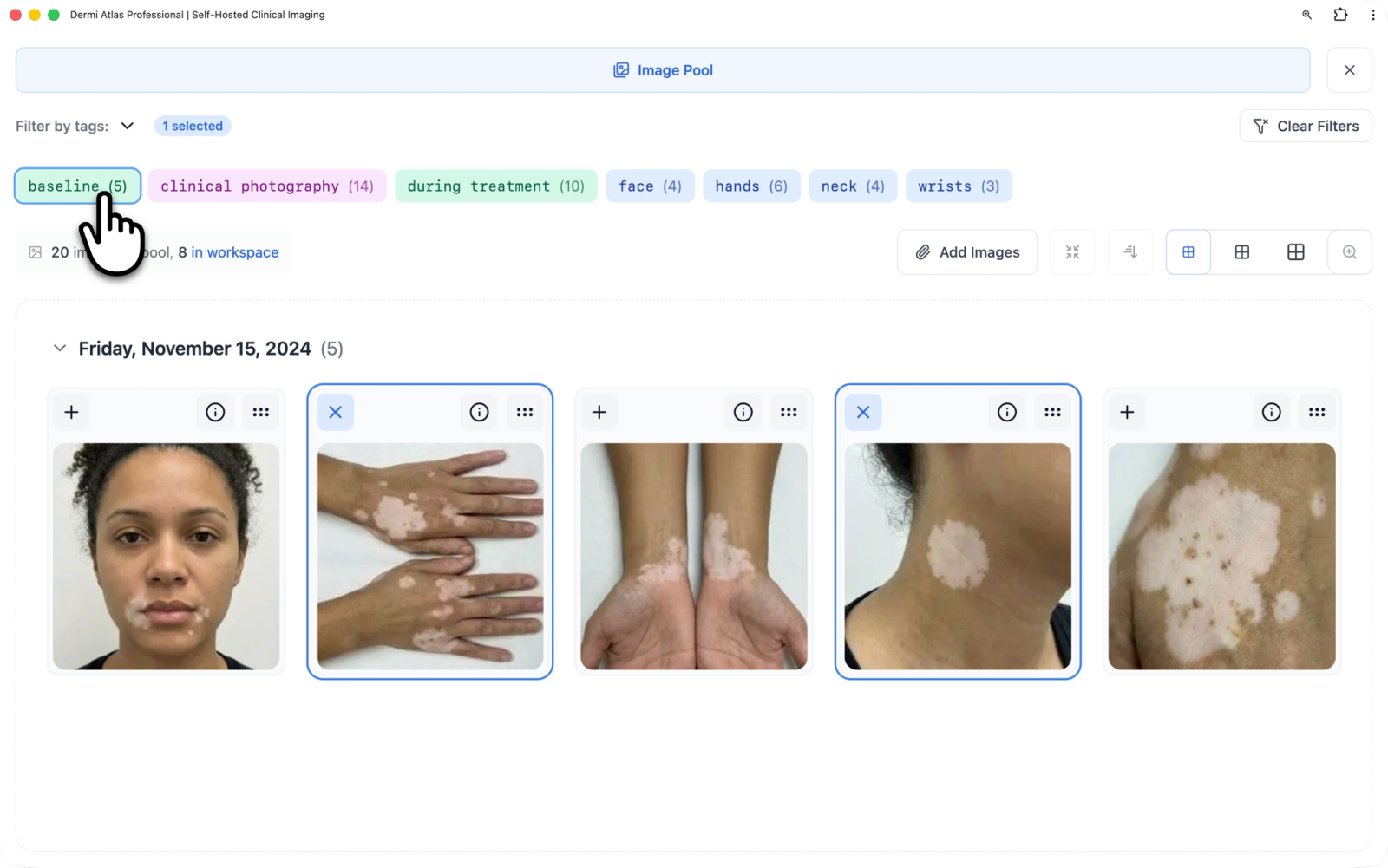
Illustrative demo with synthetic data. Learn more
Working with an Image
Selecting a photograph opens it in the Image Viewer. Each image card and list row also carries two controls:
- Manage Image Tags opens the tag drawer for that image.
- View Image Details opens the Image Properties drawer, where the caption, date, and tags are edited and the image is rotated, downloaded, or deleted.
The viewer and the Image Properties drawer are covered in Viewing Images.
Using Images in Entries
In the Image Pool opened from a clinical entry, the Add toggle on each card places the image in that entry's workspace, and selecting it again takes the image back out. Workspaces are covered in Clinical Entries and Appointment Notes, and the comparisons built from them in Comparing Images in Split and Overlay Views.
Exporting the Image Pool
Only Clinician accounts can export the Image Pool. Export Image Pool, in the options menu of the Image Pool header, generates a PDF report of the pool; see Generating PDF Reports. The complete list of what each account type can do is in Account Types and Permissions.
Related Resources
- Viewing Images for the Image Viewer and the Image Properties drawer
- Capturing Photos with Atlas Companion for capturing photos on iPhone and iPad
- Tag Management for the tags used to filter the pool
- Organizing Images with Zones for grouping photographs of one body area
Was this article helpful?
Your feedback helps improve the documentation
Still have questions?
Typical response within 24 hours.
Synthetic Data Notice
All demonstrations, screenshots, and media on this page use synthetic data only. No real patient information is shown.
The following are synthetic and do not correspond to real patients:
- All human faces and individuals are synthetic and do not represent real people
- All clinical and medical images, including photographs and scans, are synthetic or simulated
- All patient names, dates, identifiers, and other details are fictional
- All clinical notes and documentation are sample content for demonstration only
Media is provided solely to illustrate platform functionality and workflows.